Getting started
Your account and MFA
Your Breqwatr Cloud account is how you sign in to the Breqwatr Cloud Portal (Strata). Every account uses multi-factor authentication (MFA): your password, plus a six-digit code from an authenticator app.
Before you start
- An email address you can receive mail at.
- An authenticator app on your phone or computer. Any app that generates six-digit time-based codes works.
Sign up
- Open dashboard.breqwatr.cloud/users/sign_up.
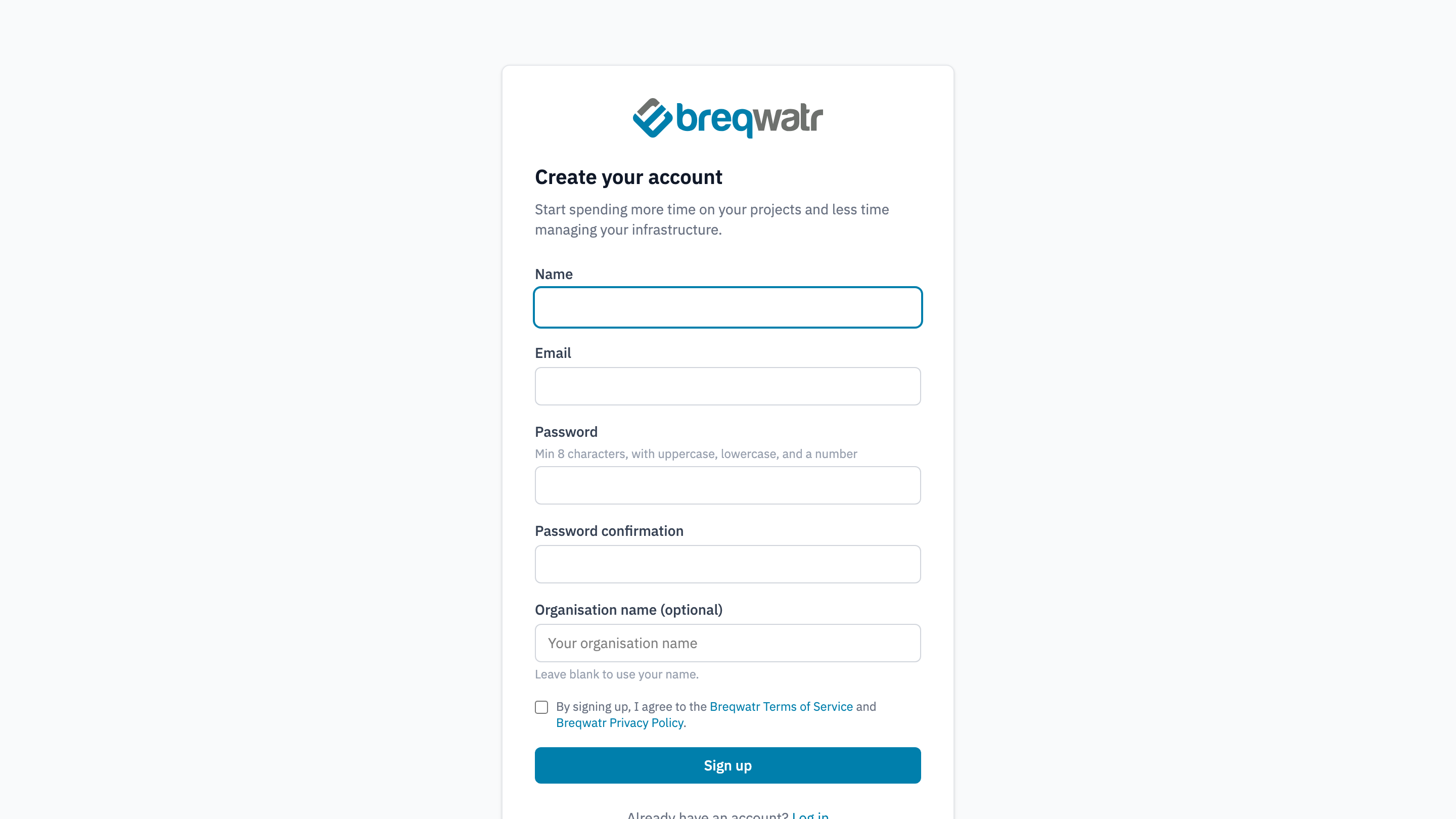
- Fill in Name, Email, Password and Password confirmation. The password needs at least 8 characters, with an uppercase letter, a lowercase letter and a number.
- Optionally, fill in Organisation name. If you leave it blank, the organisation is named after you.
- Read the Terms of Service and Privacy Policy, tick the agreement box, and choose Sign up.
- Open the confirmation email and choose the link in it. You can't sign in until the address is confirmed.
Sign in and set up MFA
The first time you sign in, the portal asks you to set up MFA before anything else.
- Sign in with your email and password. The portal shows "Two-factor authentication is required. Set it up to continue."
- Scan the QR code with your authenticator app. If you can't scan it, enter the secret shown under If you can't scan into the app instead.
- Enter the six-digit code the app shows in Authenticator code, and choose Enable two-factor authentication.
- Save your recovery codes. The portal shows ten codes, once. Each one signs you in a single time if you can't use your authenticator app. Keep them somewhere safe, such as a password manager, away from the device that runs your authenticator app.
- Tick I have saved my recovery codes somewhere safe, and choose Continue.
From now on, every sign-in asks for your email and password, then a code from your authenticator app, or one of your recovery codes.
Where you land
| How you signed up | What you see |
|---|---|
| On your own | A new organisation, with you as its owner, named as you entered it at sign-up or after you. Rename it in the organisation's Settings |
| From an invitation | The organisation that invited you, in the role the invitation gave you |
A new organisation has no projects. Complete your billing details and add a payment method before you create your first project; Projects, users and roles shows how.
One person can belong to more than one organisation. If you do, you choose which one to work in after you sign in. Projects, users and roles explains organisations, projects and roles.
If you lose your authenticator app
- You still have recovery codes: sign in with one of them in place of the six-digit code.
- You've lost the app and the recovery codes: raise a support ticket; see Raise a support ticket. Support can remove the MFA requirement on your account so you can sign in, and you then set up MFA again.
Impact
- A stolen or guessed password isn't enough to sign in to your account.
- The portal is where you manage your organisation, projects, people and billing. Tools such as the OpenStack CLI and OpenTofu don't use your password and MFA: they use an application credential, covered in Application credentials and clouds.yaml.
Related Well-Architected pillars
- Security and sovereignty: identity and access, starting with every account using MFA.
Next
A tour of the portal shows where everything is in the Breqwatr Cloud Portal.
Further reading
- Sign in: signing in with a code or a recovery code.
- Manage MFA: recovery codes, and losing your authenticator.
- Reset your password: if you forget your password.
- Manage your profile: name, email, password and support access.