How-to
Floating IPs
A floating IP is a public address you allocate to your project and attach to an instance, so the instance can be reached from the internet. You can move it to another instance, and release it when you're done.
The instance keeps only its private address. The network's router translates between the two, so the operating system never sees the floating IP. An allocated address stays in your project, attached or not, until you release it. Floating IPs count against your project's quota in each region.
Before you start
- An instance,
ACTIVE, on a network with a router to the internet: see Networks and routers. Every project'sdefaultnetwork has one. - A security group rule on the instance for the ports you want to reach. Without one, the address answers nothing.
Allocate and attach an address
- In the Breqwatr Cloud Portal (Strata), open IP Addresses and choose Allocate IP. The new address appears in the list, attached to nothing.
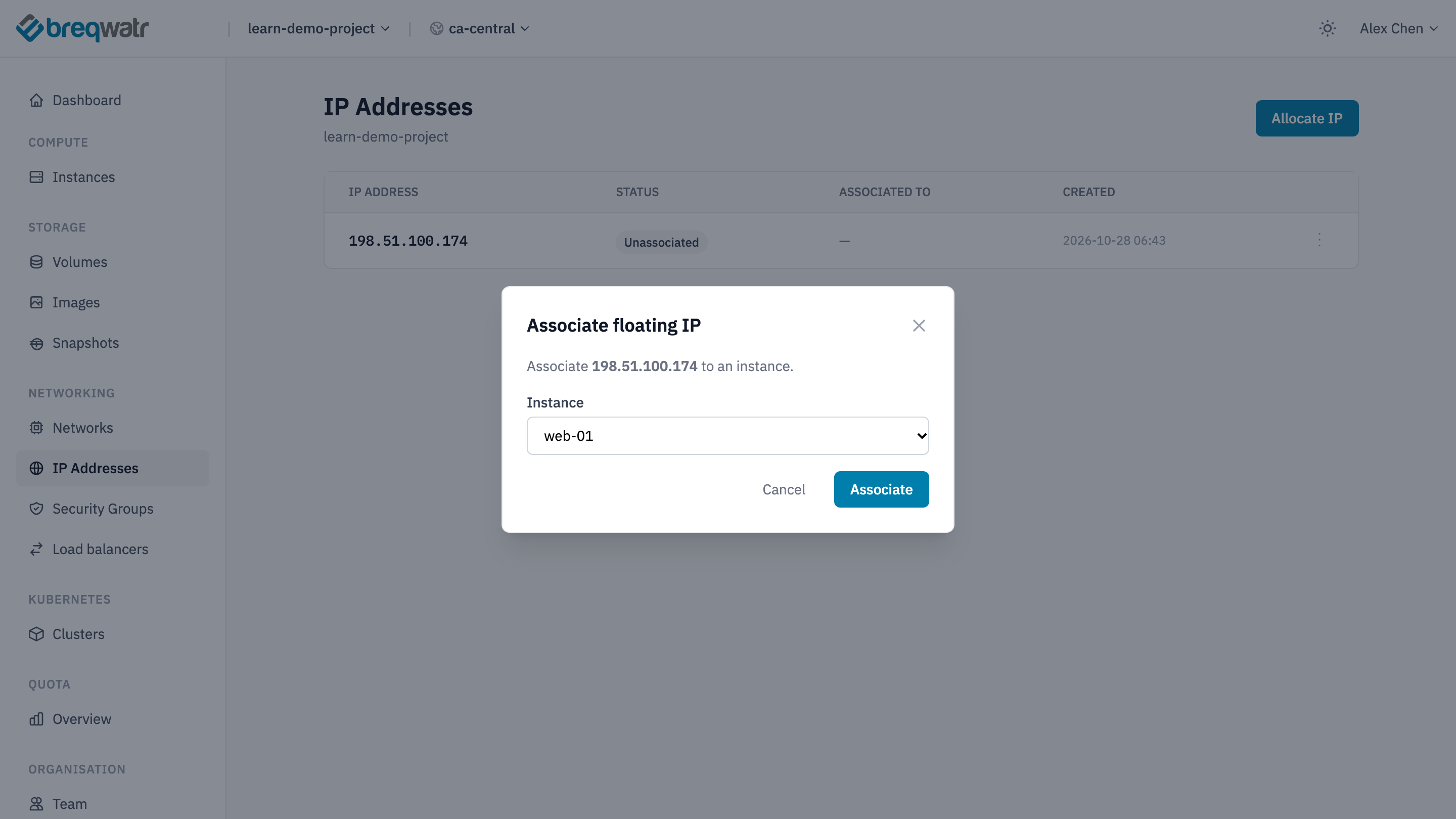
- Open the menu at the end of its row and choose Associate.
- In Associate floating IP, pick the Instance and choose Associate. The list shows only
ACTIVEinstances.
From an instance's page, Floating IP attaches an address you've allocated, or allocates one if you have none spare.
On an instance with more than one network interface, the portal may attach the address to any of them. To choose the interface, use the CLI's --fixed-ip-address.
Find the external network that floating IPs come from, then create an address and attach it. The floating ip create command prints the address:
openstack --os-cloud <cloud-name> network list --external -c Name
openstack --os-cloud <cloud-name> floating ip create <external-network> -f value -c floating_ip_address
openstack --os-cloud <cloud-name> server add floating ip web-01 <floating-ip>
On an instance with more than one interface, add --fixed-ip-address with the private address of the interface it should go to.
Attach the address to the instance's port:
resource "openstack_networking_floatingip_v2" "web_01" {
  pool    = var.external_network
  port_id = openstack_networking_port_v2.web_01.id
}

output "web_01_address" {
  value = openstack_networking_floatingip_v2.web_01.address
}
The port is the one in the instance's network block, as in Security groups. tofu output web_01_address shows the address.
Move or detach an address
In IP Addresses, open the address's menu and choose Disassociate. Or, on the instance's page, choose Disassociate with the address, type CONFIRM and confirm. The address stays in your project, and Associate attaches it to another instance.
Change port_id to the other instance's port and apply.
Moving an address keeps it the same, so anything that uses it, such as a DNS record, needs no change.
Release an address
Release an address you no longer need. It goes back to the platform, and a later allocation may not give it to you again.
Check it worked
openstack --os-cloud <cloud-name> floating ip listshows the address with the instance's private address beside it, and its statusACTIVE. An address that's attached to nothing showsDOWN.- From your computer, the instance answers on a port its security group allows, such as
ssh ubuntu@<floating-ip>.
Related
- Networking model: how a floating IP reaches a private network.
- Spend efficiency: releasing what you don't use.
- Connect to an instance: sign in at the floating IP.
- Bastion hosts: one floating IP for many instances.