Tutorials
Launch your first instances
Launch a Linux instance and a Windows instance, sign in to each, and delete them. Then do the same with the OpenStack CLI and with OpenTofu, and see that each tool builds the same thing.
Well-Architected
Pillar: Operational excellence. The same result from the portal, the CLI and code, and only the code version can be repeated exactly.
Also touches: Security and sovereignty (sign-in limited to your own IP address) and Spend efficiency (cleaning up what you no longer need).
What you'll build
| Resource | Name | Details |
|---|---|---|
| Key pair | first-instance |
Your SSH public key, for signing in to Linux |
| Security group | first-instance |
SSH (22) and RDP (3389) from your IP address only |
| Linux instance | web-01 |
Ubuntu, flavour v1.c1r2, 20 GB root volume |
| Windows instance | win-01 |
Windows Server, flavour v1.c2r8, 80 GB root volume |
| Floating IPs | two | One for each instance |
Both instances boot from a volume that's deleted with the instance, on your project's default network.
Before you start
- Completed: Getting started, including Application credentials and clouds.yaml and Install the OpenStack CLI, with the environment active.
- OpenTofu 1.13.1, for the OpenTofu way: install that version as in Installing OpenTofu, then check it with
tofu version, which showsOpenTofu v1.13.1. The pipeline in Deploy from the pipeline runs the same version. - Your public IP address, written as
<your-ip>below. The security group allows only that address in. - Quota for 2 instances, 3 vCPUs, 10 GB of memory, 100 GB of storage and 2 floating IPs.
- Time: about 60 minutes in all.
- The code: the OpenTofu way's
main.tfis also infirst-instance/in learn-projects, the course's code repository, at releasev1.2.0.
Commands use <cloud-name>, the name of the entry in your clouds.yaml. They're the same in PowerShell and in a macOS or Linux shell unless a tab says otherwise.
Step 1: Create an SSH key pair
Linux instances sign you in with an SSH key. Create one on your computer; the private key stays there, and you give Breqwatr Cloud the public key.
This creates first-instance (the private key) and first-instance.pub (the public key) in the .ssh folder in your home folder.
Step 2: Build it
Pick a tab and follow it to the end of this step. Then sign in (step 3), clean up (step 4), and come back for the next tab.
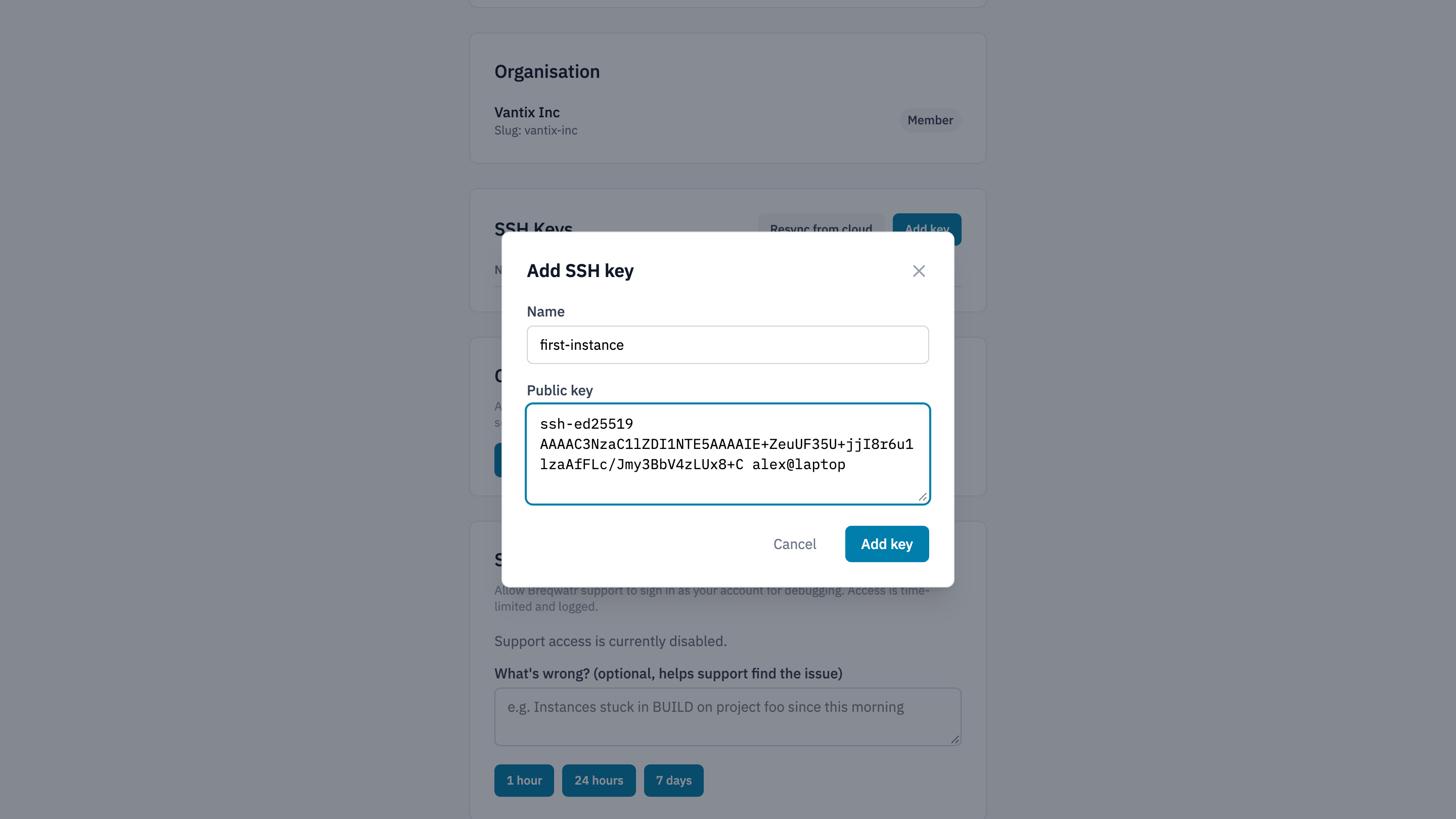
Add your public key. Open your account menu at the top right and choose My Account. In SSH Keys, choose Add key, enter the name first-instance, paste the contents of first-instance.pub into Public key, and choose Add key.
Create the security group.
- In your project, open Security Groups and choose New security group. Name it
first-instanceand create it. - Open
first-instanceand choose Add rule: Protocol TCP, Open Port Port, Port 22, Source CIDR<your-ip>/32. Choose Add rule. - Add a second rule the same way, with Port 3389.
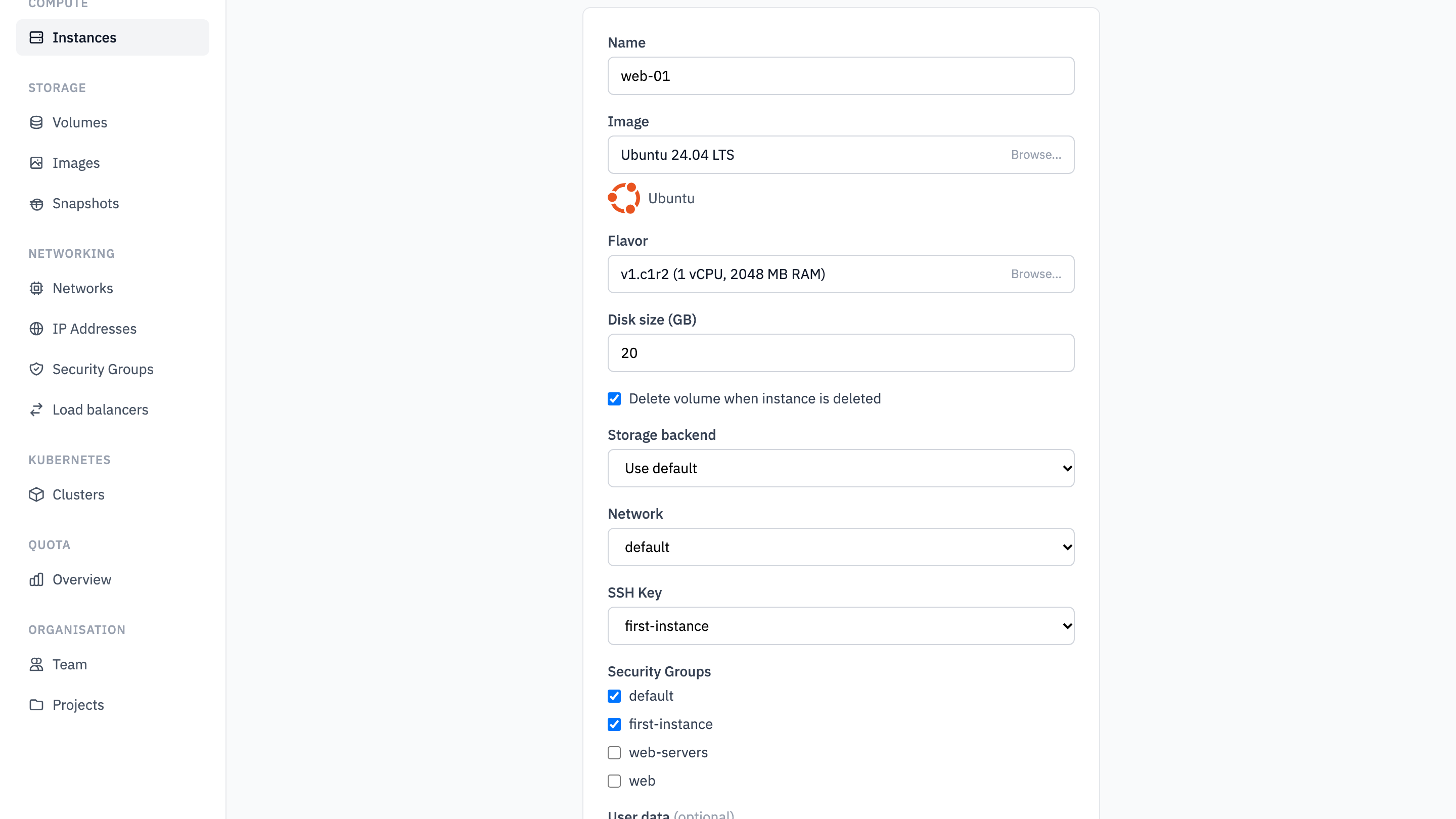
Launch the Linux instance. Open Instances and choose New instance:
- Image: an Ubuntu image from Public Images.
- Flavor:
v1.c1r2. - Disk size (GB): 20. Leave Delete volume when instance is deleted ticked and Storage backend on Use default.
- Network:
default. - SSH Key:
first-instance. - Security Groups: leave
defaultticked and tickfirst-instance. - Enter the name
web-01and choose Create instance.
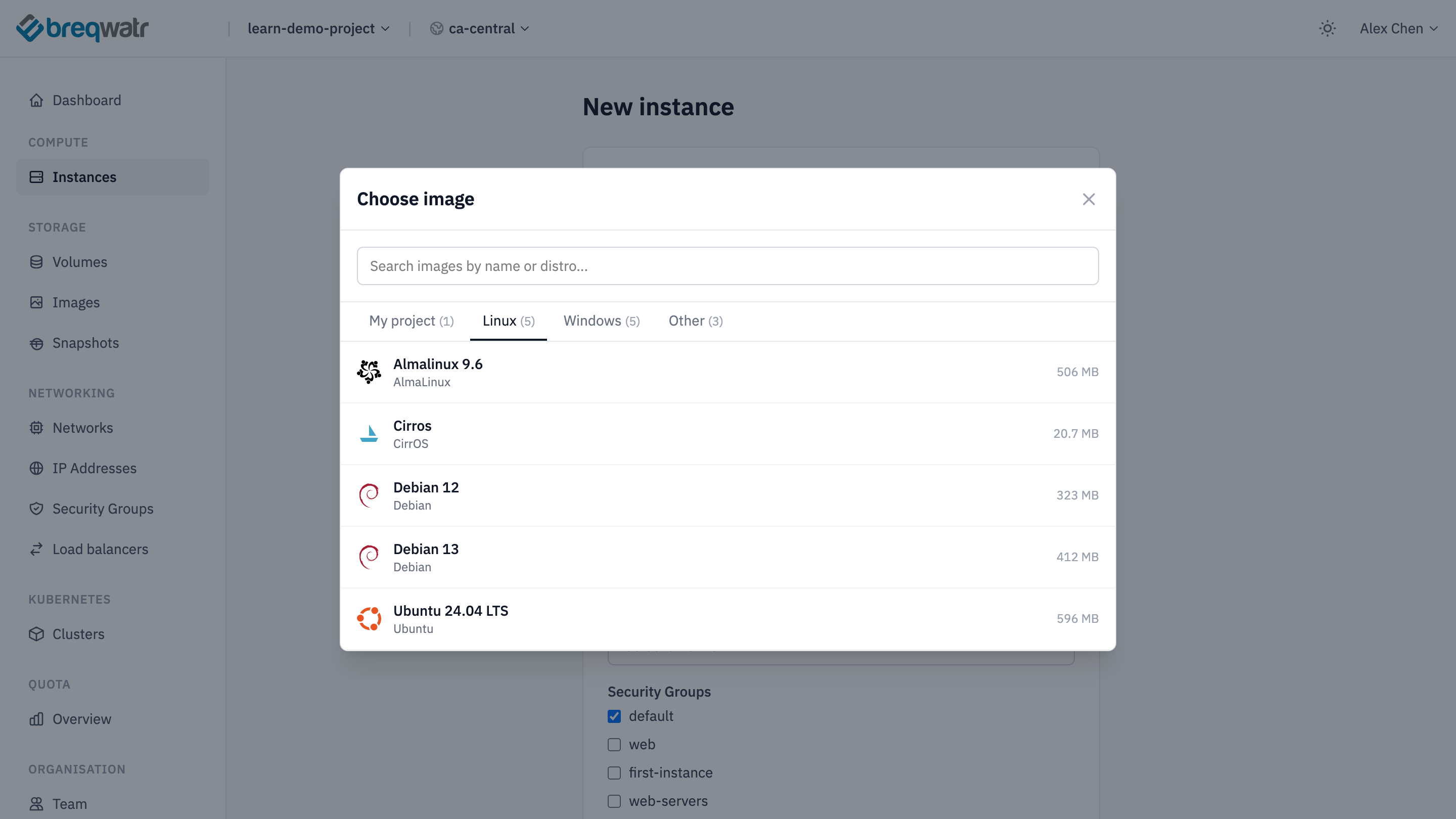
Image and Flavor each open a picker from Browse.... Ubuntu is on the picker's Linux tab:
Launch the Windows instance. Choose New instance again: a Windows Server image, Flavor v1.c2r8, Disk size (GB) 80, Network default, and the default and first-instance security groups. Windows images don't ask for an SSH key. Name it win-01 and choose Create instance.
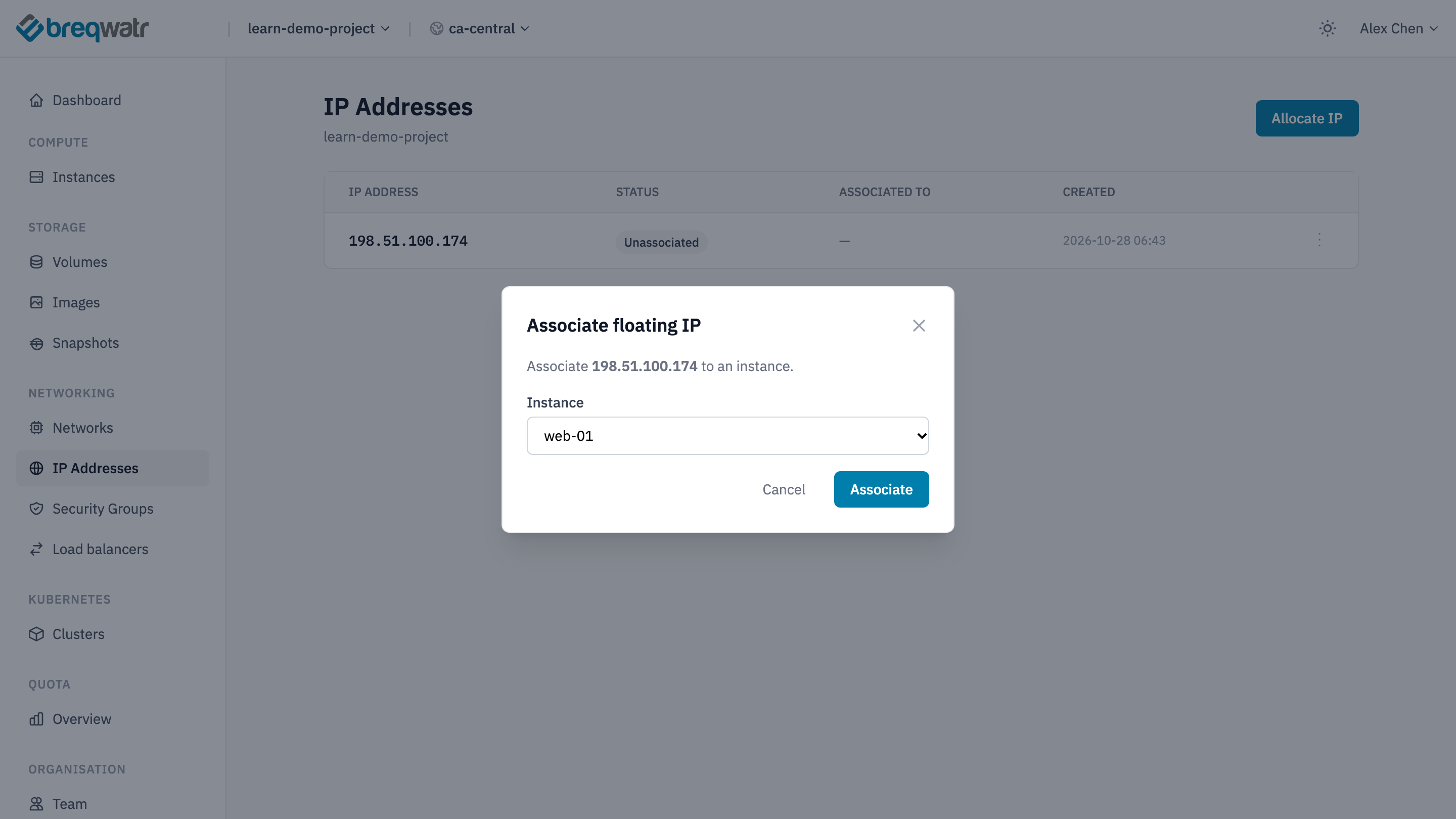
Give each instance a floating IP. Open IP Addresses and choose Allocate IP. On the new address, open the menu at the end of its row, choose Associate and pick web-01. Do the same for win-01.
Add your public key, then create the security group and its two rules:
openstack --os-cloud <cloud-name> keypair create --public-key $HOME/.ssh/first-instance.pub first-instance
openstack --os-cloud <cloud-name> security group create first-instance
openstack --os-cloud <cloud-name> security group rule create --ingress --protocol tcp --dst-port 22 --remote-ip <your-ip>/32 first-instance
openstack --os-cloud <cloud-name> security group rule create --ingress --protocol tcp --dst-port 3389 --remote-ip <your-ip>/32 first-instance
Find the image names and the external network that floating IPs come from:
openstack --os-cloud <cloud-name> image list
openstack --os-cloud <cloud-name> network list --external
An instance boots from a volume created from an image, so get each image's ID:
openstack --os-cloud <cloud-name> image show "<linux-image>" -f value -c id
openstack --os-cloud <cloud-name> image show "<windows-image>" -f value -c id
Launch both instances. delete_on_termination=true deletes each root volume with its instance:
openstack --os-cloud <cloud-name> server create --flavor v1.c1r2 --network default --security-group default --security-group first-instance --key-name first-instance --block-device source_type=image,uuid=<linux-image-id>,destination_type=volume,volume_size=20,boot_index=0,delete_on_termination=true --wait web-01
openstack --os-cloud <cloud-name> server create --flavor v1.c2r8 --network default --security-group default --security-group first-instance --block-device source_type=image,uuid=<windows-image-id>,destination_type=volume,volume_size=80,boot_index=0,delete_on_termination=true --wait win-01
Create a floating IP for each and attach it. The first command prints the address:
openstack --os-cloud <cloud-name> floating ip create <external-network> -f value -c floating_ip_address
openstack --os-cloud <cloud-name> server add floating ip web-01 <web-01-address>
openstack --os-cloud <cloud-name> floating ip create <external-network> -f value -c floating_ip_address
openstack --os-cloud <cloud-name> server add floating ip win-01 <win-01-address>
Create a folder called first-instance with this file in it, main.tf. Replace the placeholders with your IP address, the image names and the external network from openstack image list and openstack network list --external.
terraform {
  required_version = ">= 1.13"
  required_providers {
    openstack = {
      source  = "terraform-provider-openstack/openstack"
      version = "~> 3.4"
    }
  }
}

# Reads the cloud named in the OS_CLOUD environment variable from clouds.yaml
provider "openstack" {}

locals {
  my_ip            = "<your-ip>/32"
  external_network = "<external-network>"
}

data "openstack_networking_network_v2" "default" {
  name = "default"
}

data "openstack_networking_secgroup_v2" "default" {
  name = "default"
}

data "openstack_images_image_v2" "linux" {
  name        = "<linux-image>"
  most_recent = true
}

data "openstack_images_image_v2" "windows" {
  name        = "<windows-image>"
  most_recent = true
}

resource "openstack_compute_keypair_v2" "first_instance" {
  name       = "first-instance"
  public_key = file(pathexpand("~/.ssh/first-instance.pub"))
}

resource "openstack_networking_secgroup_v2" "first_instance" {
  name = "first-instance"
}

resource "openstack_networking_secgroup_rule_v2" "ssh" {
  security_group_id = openstack_networking_secgroup_v2.first_instance.id
  direction         = "ingress"
  ethertype         = "IPv4"
  protocol          = "tcp"
  port_range_min    = 22
  port_range_max    = 22
  remote_ip_prefix  = local.my_ip
}

resource "openstack_networking_secgroup_rule_v2" "rdp" {
  security_group_id = openstack_networking_secgroup_v2.first_instance.id
  direction         = "ingress"
  ethertype         = "IPv4"
  protocol          = "tcp"
  port_range_min    = 3389
  port_range_max    = 3389
  remote_ip_prefix  = local.my_ip
}

# A port for each instance, so its floating IP can be attached to it
resource "openstack_networking_port_v2" "web_01" {
  name               = "web-01"
  network_id         = data.openstack_networking_network_v2.default.id
  security_group_ids = [data.openstack_networking_secgroup_v2.default.id, openstack_networking_secgroup_v2.first_instance.id]
}

resource "openstack_networking_port_v2" "win_01" {
  name               = "win-01"
  network_id         = data.openstack_networking_network_v2.default.id
  security_group_ids = [data.openstack_networking_secgroup_v2.default.id, openstack_networking_secgroup_v2.first_instance.id]
}

resource "openstack_compute_instance_v2" "web_01" {
  name        = "web-01"
  flavor_name = "v1.c1r2"
  key_pair    = openstack_compute_keypair_v2.first_instance.name

  block_device {
    uuid                  = data.openstack_images_image_v2.linux.id
    source_type           = "image"
    destination_type      = "volume"
    volume_size           = 20
    boot_index            = 0
    delete_on_termination = true
  }

  network {
    port = openstack_networking_port_v2.web_01.id
  }
}

resource "openstack_compute_instance_v2" "win_01" {
  name        = "win-01"
  flavor_name = "v1.c2r8"

  block_device {
    uuid                  = data.openstack_images_image_v2.windows.id
    source_type           = "image"
    destination_type      = "volume"
    volume_size           = 80
    boot_index            = 0
    delete_on_termination = true
  }

  network {
    port = openstack_networking_port_v2.win_01.id
  }
}

resource "openstack_networking_floatingip_v2" "web_01" {
  pool       = local.external_network
  port_id    = openstack_networking_port_v2.web_01.id
  depends_on = [openstack_compute_instance_v2.web_01]
}

resource "openstack_networking_floatingip_v2" "win_01" {
  pool       = local.external_network
  port_id    = openstack_networking_port_v2.win_01.id
  depends_on = [openstack_compute_instance_v2.win_01]
}

output "web_01_address" {
  value = openstack_networking_floatingip_v2.web_01.address
}

output "win_01_address" {
  value = openstack_networking_floatingip_v2.win_01.address
}
Tell OpenTofu which clouds.yaml entry to use, then initialize, review and apply:
tofu plan lists 10 resources to add. Type yes when apply asks. The two addresses print at the end; tofu output shows them again.
Step 3: Sign in
Connect as the image's default user, ubuntu on Ubuntu, with your private key:
The same command works in PowerShell, macOS and Linux. Type yes the first time to accept the instance's host key.
Breqwatr's Windows images ask you to set the Administrator password on the instance's console at first boot. Allow a few minutes after launch for the first boot to finish.
-
Open the console. In the portal, open Instances, choose
win-01, then Console. From the CLI, or after OpenTofu, get the console's address and open it in your browser: -
At Press Ctrl+Alt+Delete to unlock, choose Send CtrlAltDel at the top right of the console.
- Choose Sign in under Administrator. Windows says "The user's password must be changed before signing in." Choose OK.
- Enter a new password in New password and Confirm password, and press Enter. Windows confirms "Your password has been changed."
- Connect over RDP to
<win-01-address>, asAdministrator, with that password:- Windows: Remote Desktop Connection (
mstsc). - macOS: Microsoft's Windows App, from the App Store.
- Linux: an RDP client such as Remmina.
- Windows: Remote Desktop Connection (
Step 4: Clean up
Delete everything before you start the next way, so each way starts from an empty project.
-
In Instances, open
web-01and choose Delete. Tick Also delete 1 attached volume, typeCONFIRM, and choose Delete instance; the dialog doesn't continue without the tick. Do the same forwin-01. Their root volumes go with them.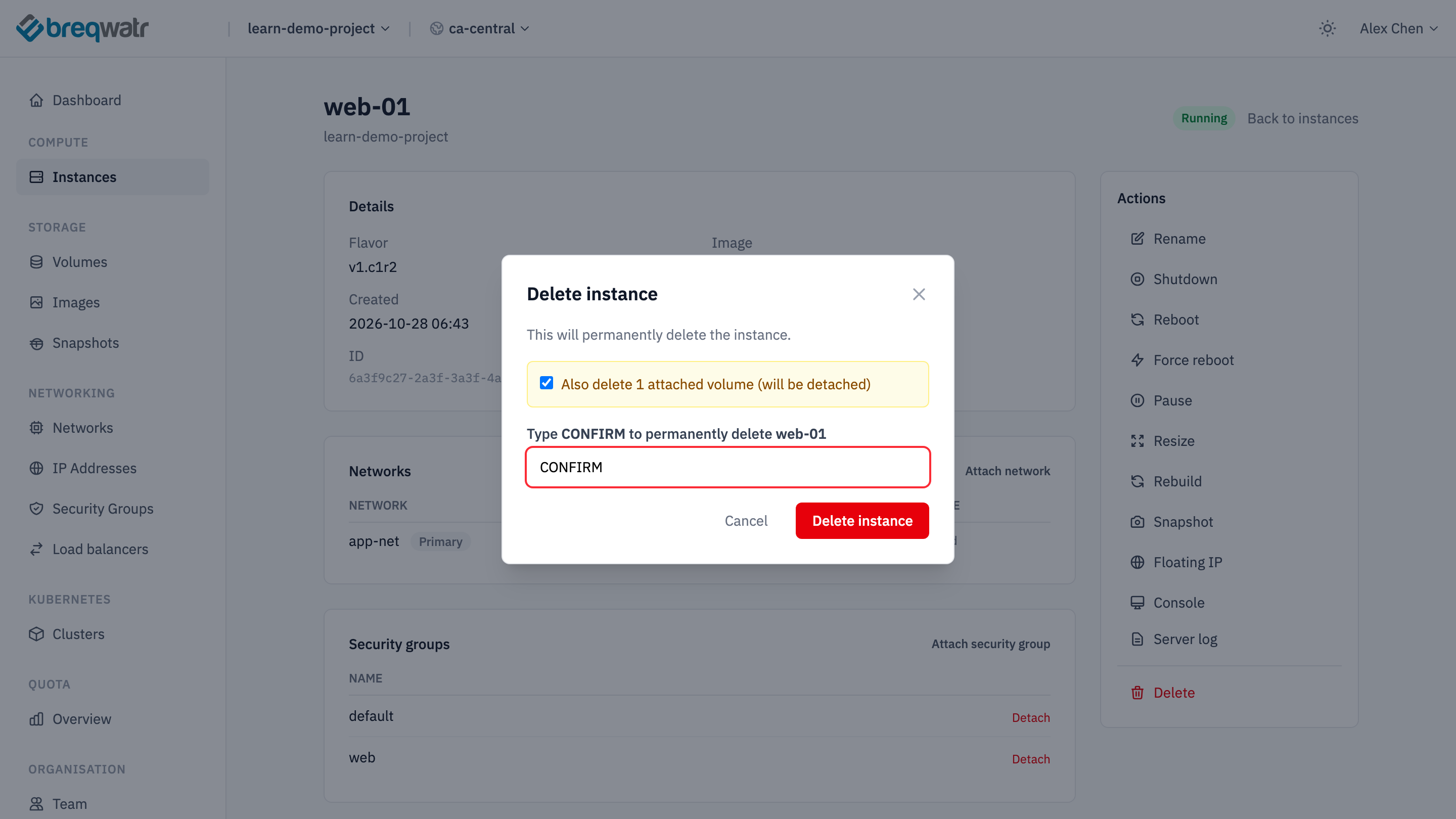
-
In IP Addresses, release both addresses.
- In Security Groups, delete
first-instance. - In My Account, under SSH Keys, delete
first-instance.
Check it worked
- After each way,
openstack --os-cloud <cloud-name> server listshowsweb-01andwin-01asACTIVE, each with a private and a floating IP address. - SSH lands you at a shell prompt on
web-01, and RDP at the Windows desktop onwin-01. - After cleaning up,
server listis empty again, andopenstack --os-cloud <cloud-name> volume listshows no volumes left behind.
What you learned
- The portal, the CLI and OpenTofu drive the same APIs and build the same instances; see GUI, API and infrastructure as code.
- An instance is an image, a flavour and a root volume, with access set up at first boot; see Images, flavours and instances.
- Security groups open only the ports a workload needs, to only the addresses that need them; see Networking model.
- Code can be applied and destroyed again and again with the same result, which is what makes instances disposable; see Pets vs cattle.
Next
- OpenTofu fundamentals: variables, state and modules, building on the OpenTofu way.
- Connect to an instance: SSH, RDP and the web console.
- Floating IPs: allocating, associating and releasing addresses.