How-to
Security groups
Create a security group, add rules for the traffic you want to let in, and attach it to instances. Anything a rule doesn't allow in is dropped.
A security group is a set of firewall rules that applies to an instance's network interfaces. Rules are stateful: when a rule lets a request in, the reply goes back out without a rule of its own. An instance can have several groups, and gets the rules of all of them together.
Every project has a group named default, ticked on the launch form. It lets instances that have it reach each other, and allows all outbound traffic. It can't be deleted.
Before you start
- Access to the project.
- The ports your application needs, and the addresses that need them. For SSH or RDP, your public IP address, for example from
curl -4 ifconfig.me.
Create a group and add rules
This group allows SSH from your IP address and HTTP from anywhere.
- In the Breqwatr Cloud Portal (Strata), open Security Groups and choose New security group.
- Enter the Name
weband, if you like, a Description. Choose Create security group. - Open
weband choose Add rule. In Add ingress rule, choose:- Protocol: TCP.
- Open Port: Port, and Port 22.
- Source CIDR: your public IP address followed by
/32.
- Choose Add rule.
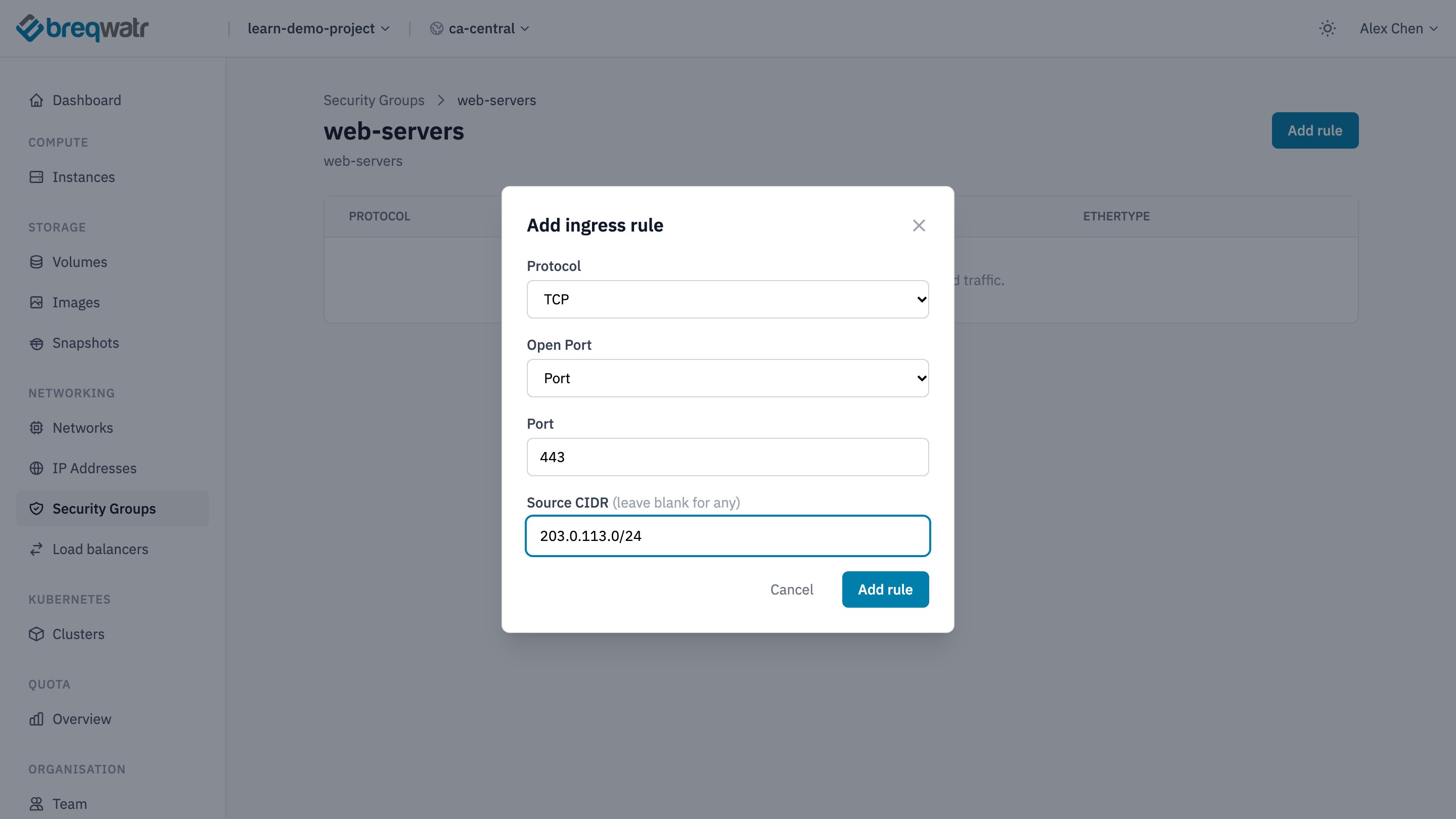 5. Add a second rule: Protocol TCP, Port 80, and Source CIDR left blank, which means any address.
Open Port also offers Port Range, for a range such as 8000 to 8080, and All ports. For Protocol ICMP, which ping uses, choose Open Port All ports: ICMP has no ports.
openstack --os-cloud <cloud-name> security group create web --description "SSH from my IP, HTTP from anywhere"
openstack --os-cloud <cloud-name> security group rule create web --ingress --protocol tcp --dst-port 22 --remote-ip <your-ip>/32
openstack --os-cloud <cloud-name> security group rule create web --ingress --protocol tcp --dst-port 80
Leaving out --remote-ip allows any address. --dst-port 8000:8080 gives a range, and --protocol icmp allows ping.
resource "openstack_networking_secgroup_v2" "web" {
  name        = "web"
  description = "SSH from my IP, HTTP from anywhere"
}

resource "openstack_networking_secgroup_rule_v2" "ssh" {
  security_group_id = openstack_networking_secgroup_v2.web.id
  direction         = "ingress"
  ethertype         = "IPv4"
  protocol          = "tcp"
  port_range_min    = 22
  port_range_max    = 22
  remote_ip_prefix  = "${var.my_ip}/32"
}

resource "openstack_networking_secgroup_rule_v2" "http" {
  security_group_id = openstack_networking_secgroup_v2.web.id
  direction         = "ingress"
  ethertype         = "IPv4"
  protocol          = "tcp"
  port_range_min    = 80
  port_range_max    = 80
  remote_ip_prefix  = "0.0.0.0/0"
}
Some common rules:
| Allows | Protocol | Port | Source |
|---|---|---|---|
| SSH from your computer | TCP | 22 | Your IP address, /32 |
| RDP from your computer | TCP | 3389 | Your IP address, /32 |
| A website | TCP | 80 and 443 | Any |
ping from your computer |
ICMP | Your IP address, /32 |
|
| An application port from the other instances on the network | TCP | The port | The network's range, such as 10.0.0.0/24 |
The CLI and OpenTofu can also take another group as the source, instead of an address range: --remote-group <group>, or remote_group_id. The rule then allows traffic from every instance in that group, whatever its address. Bastion hosts uses one.
Attach a group to an instance
At launch, tick the group under Security Groups on the launch form.
For a running instance, open it in Instances. In Security groups, choose Attach security group, pick the group and choose Attach. To remove one, choose Detach on the group's row, type CONFIRM and choose Detach.
At launch, add --security-group web to openstack server create, once for each group. For a running instance:
Put the group on the instance's port:
resource "openstack_networking_port_v2" "web_01" {
  name               = "web-01"
  network_id         = openstack_networking_network_v2.app.id
  security_group_ids = [openstack_networking_secgroup_v2.web.id]
}
and attach the port in the instance's network block, with port = openstack_networking_port_v2.web_01.id.
Rule changes apply to running instances straight away, with no restart.
Limit outbound traffic
A new group allows all outbound traffic, through two egress rules: one for IPv4 and one for IPv6. The portal shows and adds inbound rules only, so manage outbound rules with the CLI or OpenTofu.
To allow only some outbound traffic, delete the group's egress rules and add your own. This allows HTTPS and DNS out, and nothing else:
openstack --os-cloud <cloud-name> security group rule list web --egress -c ID
openstack --os-cloud <cloud-name> security group rule delete <rule-id>
openstack --os-cloud <cloud-name> security group rule create web --egress --protocol tcp --dst-port 443
openstack --os-cloud <cloud-name> security group rule create web --egress --protocol udp --dst-port 53
Delete both egress rules, IPv4 and IPv6. To allow all outbound traffic again, add --egress --ethertype IPv4 and --egress --ethertype IPv6 rules with no protocol.
delete_default_rules creates the group without the two egress rules:
resource "openstack_networking_secgroup_v2" "restricted_egress" {
  name                 = "restricted-egress"
  delete_default_rules = true
}

resource "openstack_networking_secgroup_rule_v2" "https_out" {
  security_group_id = openstack_networking_secgroup_v2.restricted_egress.id
  direction         = "egress"
  ethertype         = "IPv4"
  protocol          = "tcp"
  port_range_min    = 443
  port_range_max    = 443
  remote_ip_prefix  = "0.0.0.0/0"
}

resource "openstack_networking_secgroup_rule_v2" "dns_out" {
  security_group_id = openstack_networking_secgroup_v2.restricted_egress.id
  direction         = "egress"
  ethertype         = "IPv4"
  protocol          = "udp"
  port_range_min    = 53
  port_range_max    = 53
  remote_ip_prefix  = "0.0.0.0/0"
}
An instance gets the rules of all its groups together, and default allows all outbound traffic. The limit applies only to an instance that doesn't have default, or any other group that allows all outbound traffic.
Remove a rule or a group
- A rule: open the group and choose Remove rule, the icon at the end of the rule's row. Type
CONFIRMand choose Remove rule. - A group: in Security Groups, open the menu at the end of the group's row and choose Delete. Type
CONFIRMand choose Delete security group.
Remove the rule or group resource and apply.
A group that's attached to an instance can't be deleted: detach it first. Removing a rule takes effect straight away, so check you aren't removing your own way in.
Check it worked
openstack --os-cloud <cloud-name> security group rule list weblists the rules, with their direction, protocol, ports and source.- From an allowed address, the port answers:
sshconnects, orcurl http://<floating-ip>/returns a page. - From any other address, the same connection times out.
Related
- Networking model: how traffic reaches an instance.
- Security and sovereignty: opening only what a workload needs.
- Floating IPs: an address for the rules to apply to.
- Bastion hosts: a group as a rule's source.