How-to
Create a volume
Create a volume to give an instance a disk for its data, apart from its boot volume, and delete it when you no longer need it.
A volume is block storage that you attach to an instance as a disk. It exists independently of any instance, so data on it outlasts the instance it's attached to. Volumes count against your project's storage quota in each region.
Before you start
- Access to the project, and enough storage quota left in the region for the size you want, as Quota → Overview shows.
Create the volume
- In the Breqwatr Cloud Portal (Strata), open Volumes and choose New volume.
- Enter a Name, such as
data-volume, and, if you like, a Description. - Enter the Size (GB). The form starts at 10.
- Leave Storage backend on Default, and choose Create volume.
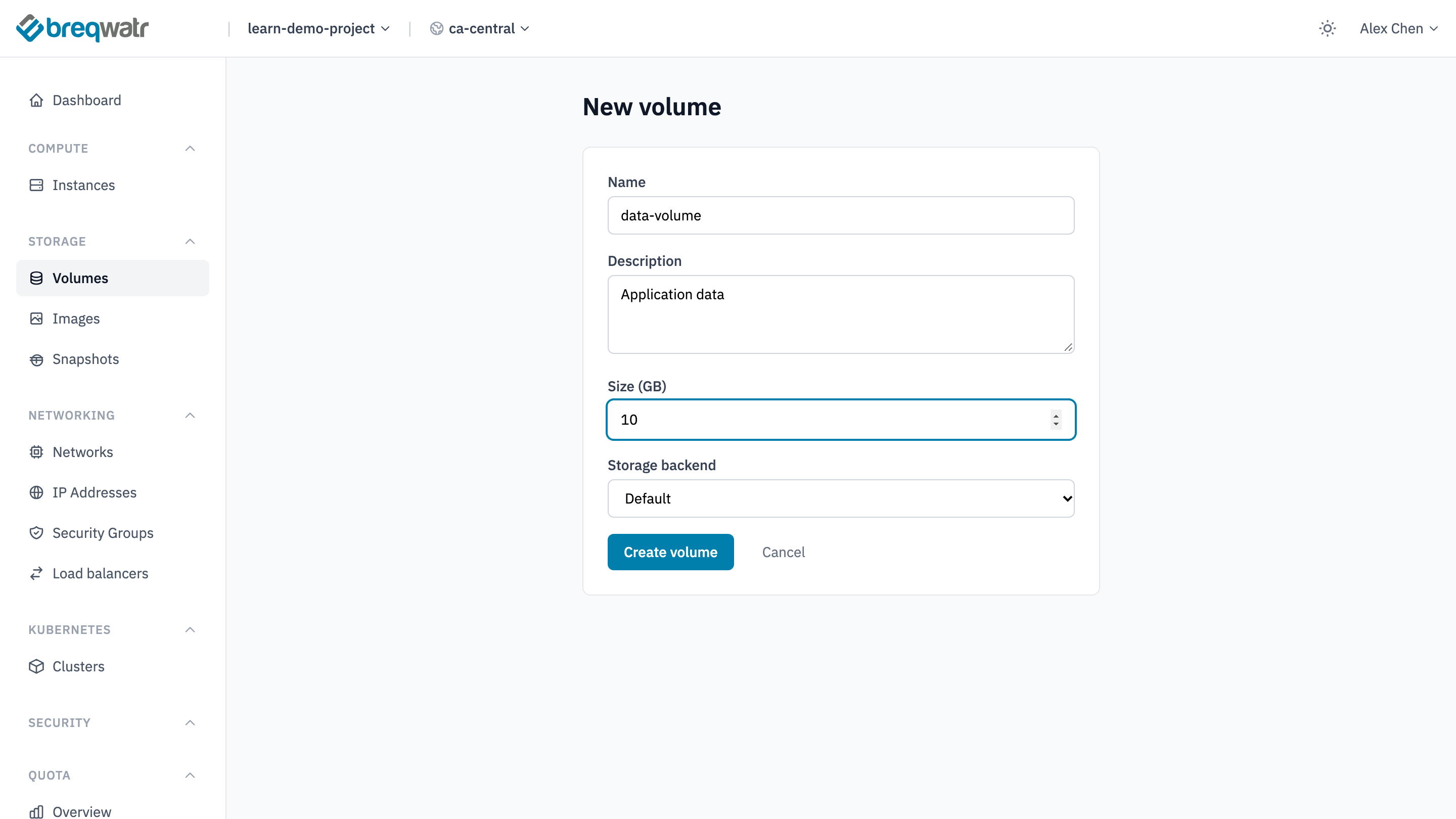
The volume appears in Volumes with the status Available.
To make a volume that starts with the data in a snapshot or a backup, see Volume snapshots and Back up a volume.
Delete a volume
Deleting a volume deletes its data. Detach it first: an attached volume can't be deleted.
Open the volume, or the menu at the end of its row in Volumes, and choose Delete. Type CONFIRM and choose Delete volume.
If the volume has snapshots, the dialog shows Also delete with the number of snapshots. Tick it to delete them with the volume: Delete volume stays unavailable until you do.
A volume with snapshots isn't deleted. Delete its snapshots first, or add --purge to delete them with it.
Remove the resource and apply.
Backups aren't deleted with the volume.
Check it worked
openstack --os-cloud <cloud-name> volume listshowsdata-volumewith the statusavailableand its size.- After a delete, the volume is no longer in the list.
Related
- Storage types: volumes and the other kinds of storage.
- Pets vs cattle: keeping data apart from instances you replace.
- Attach a volume: use the volume from an instance.
- Resize a volume: give a volume more space.