How-to
Sign in
Sign in to the Breqwatr Cloud Portal (Strata) with your email, your password and a code from your authenticator app.
Before you start
- A Breqwatr Cloud account with a confirmed email address: see Your account and MFA.
- Your authenticator app, or one of your recovery codes.
Sign in
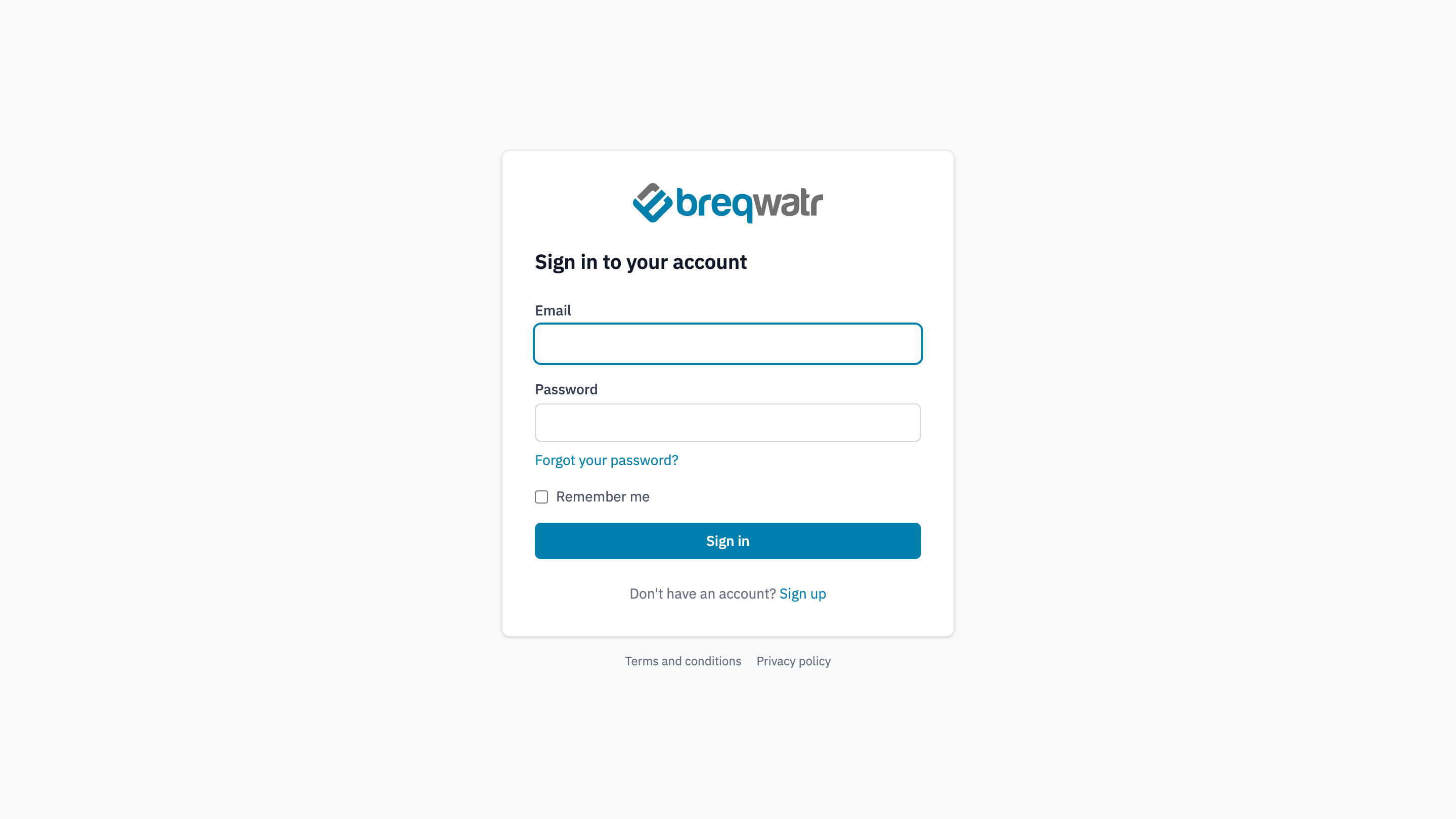
- Open dashboard.breqwatr.cloud.
- Enter your Email and Password. Tick Remember me to stay signed in on this browser for up to three days.
-
Choose Sign in.
-
On Two-factor authentication, enter the six-digit Code from your authenticator app, or one of your recovery codes, and choose Verify.
The first time you sign in, the portal asks you to set up MFA instead of asking for a code: see Your account and MFA.
If you belong to more than one organisation, choose the one to work in.
If you can't sign in
- "Invalid email or password": check both and try again, or reset your password. After 10 failed attempts in a row the account is locked, and the portal emails you a link to unlock it.
- "That code didn't match": codes change every 30 seconds, so enter the current one. If codes keep failing, check that the clock on your authenticator's device is set automatically.
- No authenticator app: use a recovery code in its place. Each one works once. See Manage MFA.
- No app and no recovery codes: raise a support ticket; see Raise a support ticket.
Sign out
Open the account menu at the top right and choose Sign out. The portal also signs you out after 90 minutes with no activity.
Check it worked
The portal opens on your organisation's dashboard, with your name in the account menu at the top right.
Related
- Your account and MFA: sign up and set up MFA.
- Manage MFA: recovery codes, and what to do if you lose your authenticator.
- Reset your password: if you've forgotten it.