How-to
Raise a support ticket
Contact Breqwatr support by email or on the support portal, with the details support needs to find your account.
Before you start
- Any member of the organisation can use the Support page: owner, admin or member.
- If you can't sign in to the portal, see If you can't sign in.
- Check Service status, linked at the foot of the Support page, or status.breqwatr.cloud. It shows whether a problem is already known.
Open the Support page
In the Breqwatr Cloud Portal (Strata), open Support under Organisation in the side menu.
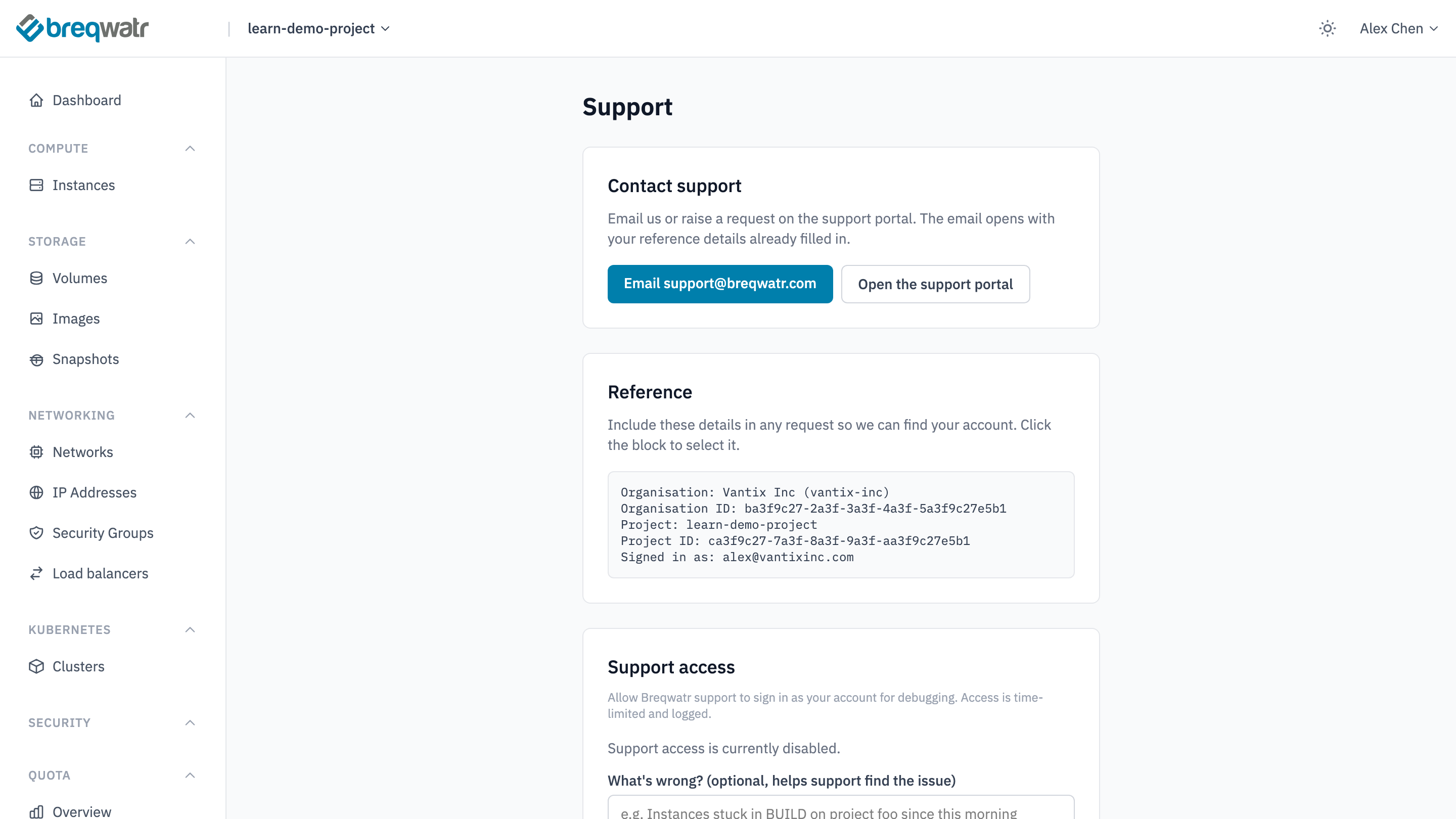
The Reference block lists your organisation's name and short name, the organisation ID, the project you're working in and its ID, and the account you're signed in as. Support uses them to find your account.
Raise the ticket
The portal has no CLI or OpenTofu equivalent: raise tickets from the Support page, by email or on the support portal.
- Choose Email support@breqwatr.com. Your mail app opens a new email to support, with your organisation's short name in the subject and the reference details in the body.
- Describe the problem above the reference details, and send it.
- Choose Open the support portal. It opens support.breqwatr.com.
- Sign in with your email address, or sign up the first time.
- Raise a request, and paste the reference details into it: click the Reference block to select it, then copy.
Describe the problem so support can start without coming back to you:
- What happened, and when, with the time zone.
- The resources involved, by name or ID, and their region.
- Any error message, word for word.
- What you've already tried.
Never put a password, an application credential secret, an access key or a recovery code in a ticket. Support doesn't need them.
Let support sign in as you
If support needs to see what you see, they can ask you to turn on Support access, on the Support page or your profile. It lets them sign in to the portal as you for 1 hour, 24 hours or 7 days, and it's logged. See Let support sign in as you.
If you can't sign in
Email support@breqwatr.com, or raise a request at support.breqwatr.com. Neither needs the portal. Give the email address you sign in with and your organisation's name in place of the reference details.
If you've lost your authenticator app and your recovery codes, the sign-in page's "Lost your authenticator and all recovery codes?" link also contacts support. Support can remove the MFA requirement on your account so you can sign in; you then set up MFA again, with a new set of recovery codes. See Manage MFA.
Check it worked
- Before you send the email, its body holds the reference details below your description.
- On the support portal, the request has the reference details pasted in.
Related
- Manage your profile: support access.
- Manage MFA: a lost authenticator app.
- Sign in: sign-in problems.