How-to
Resize an instance
Move an instance to a larger or smaller flavour, to change its vCPUs and memory. Its volumes, addresses and data stay as they are.
The instance restarts as part of the resize. Breqwatr Cloud then waits for you to confirm the new flavour, or revert to the old one.
Before you start
- An instance, and the name of the flavour you want: see Flavours and images.
- Enough quota for the new flavour's vCPUs and memory in the instance's region.
- A moment when the instance can restart.
Resize
- In the Breqwatr Cloud Portal (Strata), open Instances, then the instance.
- Choose Resize. The dialog shows the Current flavor.
-
Choose the flavour under New flavor, then Resize.
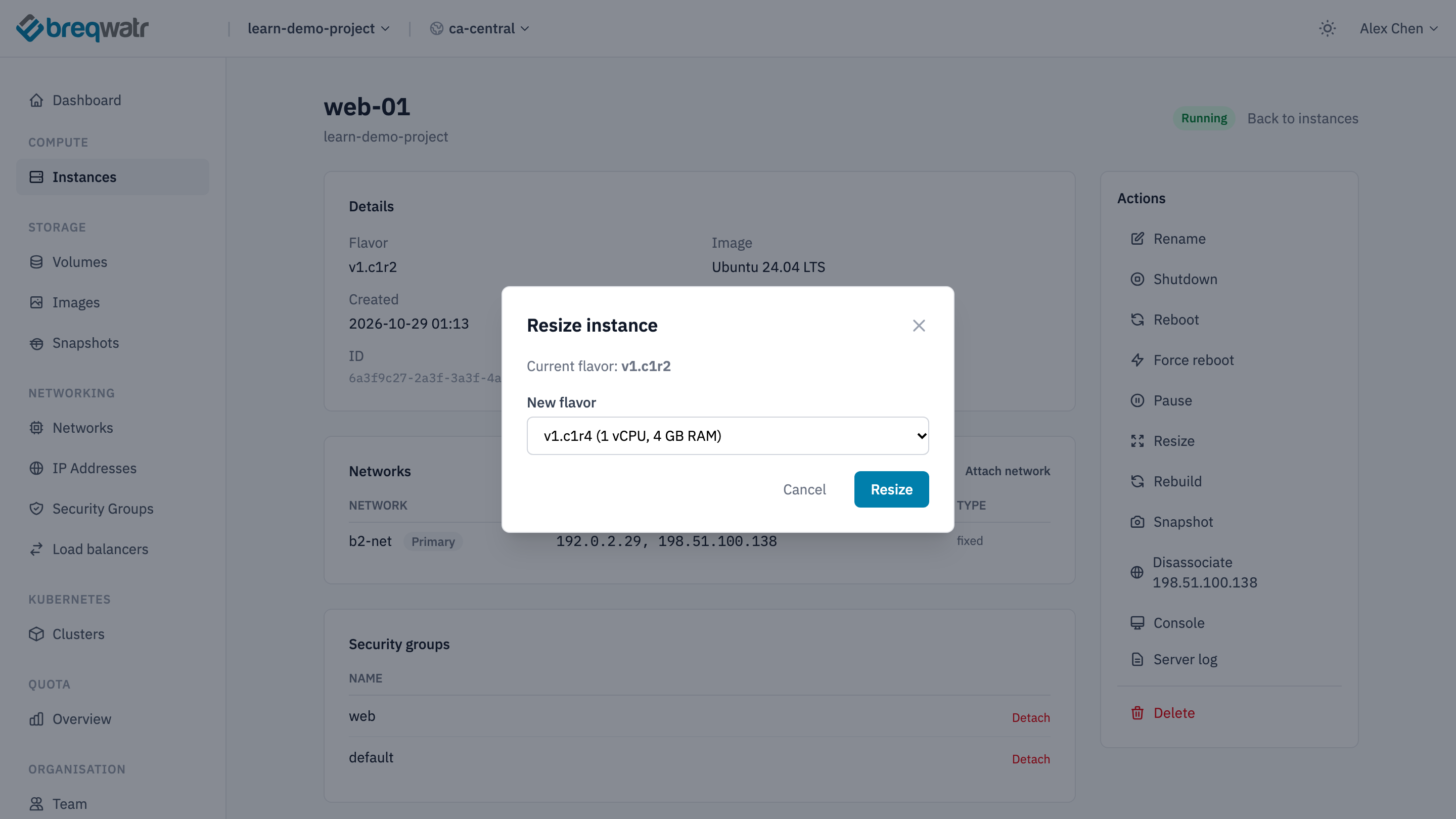
-
The instance's status shows Resizing, then Confirm Resize when the new flavour is running.
- Choose Confirm resize to keep it, or Revert resize to go back to the old flavour.
openstack --os-cloud <cloud-name> server resize --flavor v1.c1r4 --wait <instance-name>
openstack --os-cloud <cloud-name> server show <instance-name> -c status -c flavor
When the resize finishes, the status is VERIFY_RESIZE. Confirm it, or revert to the old flavour:
openstack --os-cloud <cloud-name> server resize confirm <instance-name>
openstack --os-cloud <cloud-name> server resize revert <instance-name>
The CLI may print "The root disk size in flavor will not be applied while booting from a persistent volume". That's expected: flavours have no disk, and the root volume keeps its size.
Nothing changes inside Windows or Linux: the operating system finds the new vCPUs and memory when it starts.
Check it worked
- The instance's flavour is the new one, and its status is
ACTIVE(Running in the portal). - Inside the instance, the memory has changed:
free -mon Linux, or Task Manager on Windows. openstack --os-cloud <cloud-name> server show <instance-name> -c volumes_attachedlists the same volumes as before.
Related
- Flavours and images: flavour names, and how to read the current list.
- Performance efficiency: matching flavours to what a workload needs.
- OpenTofu fundamentals: resizing through a variable, and reading the plan.