How-to
Attach a volume
Attach a volume to an instance as a disk, set it up in the operating system, and detach it when the instance no longer needs it.
An instance can be running or shut down when you attach or detach a volume. A volume is attached to one instance at a time.
Before you start
- A volume with the status Available, in the same project and region as the instance: see Create a volume.
- An instance, and a way to sign in to it: see Connect to an instance.
Attach the volume
- In the Breqwatr Cloud Portal (Strata), open Volumes and choose the volume.
- Choose Attach to instance.
- Pick the Instance and choose Attach.
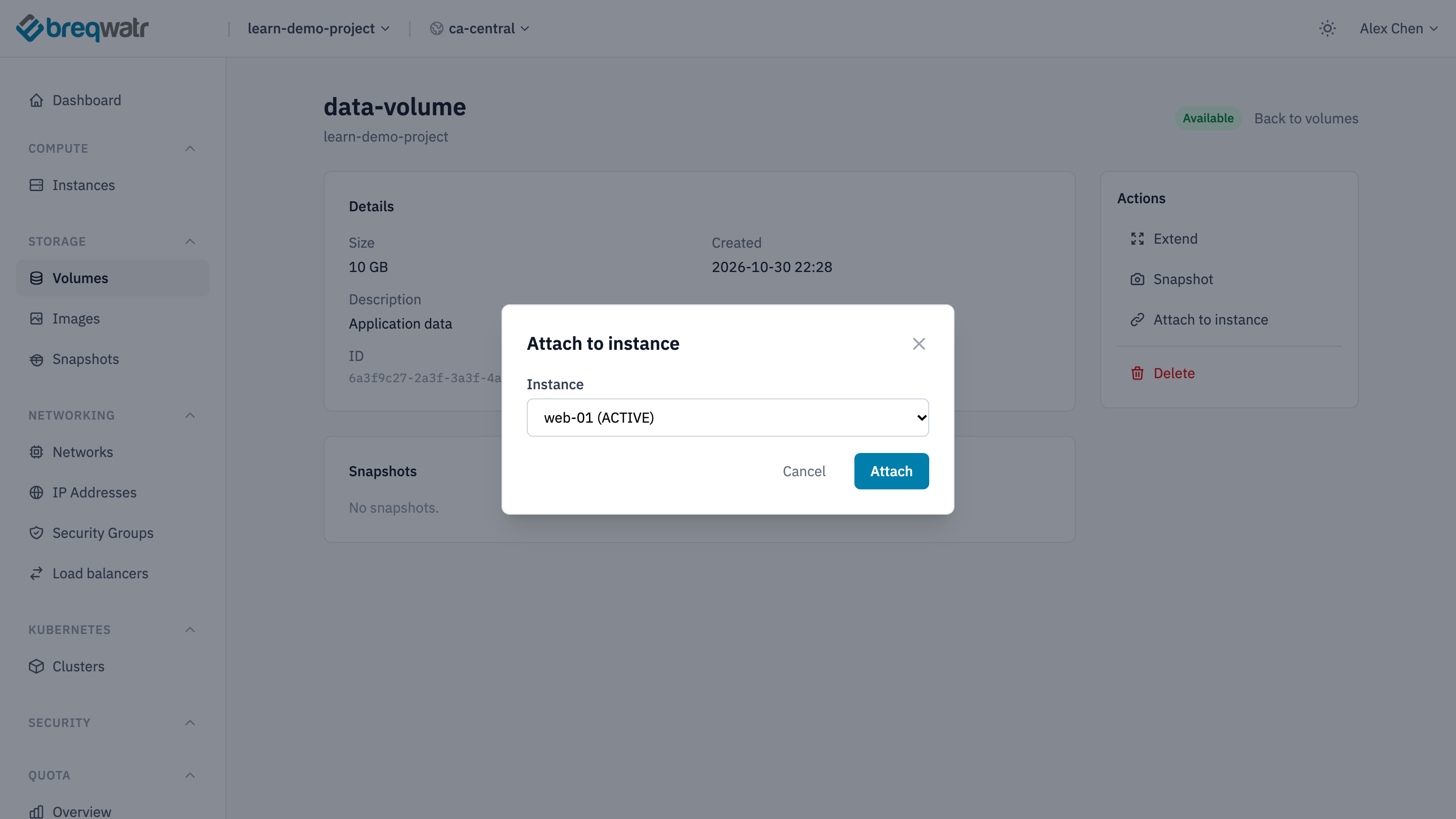
The status changes to In-use, and Attached to shows the instance and the device name. The instance's page lists the volume under Volumes.
Set it up in the operating system
A new volume is an empty disk: give it a filesystem before you use it. A volume made from a snapshot or a backup already has one, so skip straight to mounting it.
Find the new disk, the one with no partitions or mount point, usually vdb:
Make a filesystem on it, and mount it at /mnt/data:
To mount it at every start, add it to /etc/fstab by its UUID, which doesn't change if the device name does:
sudo blkid -s UUID -o value /dev/vdb
echo "UUID=<uuid> /mnt/data ext4 defaults,nofail 0 2" | sudo tee -a /etc/fstab
sudo systemctl daemon-reload
sudo mount -a
nofail lets the instance start even when the volume isn't attached.
Breqwatr's Windows images leave a newly attached disk offline, and take data disks offline again at each restart. In PowerShell as Administrator, change that once, so disks you bring online stay online:
Find the new disk: it's the one that's Offline, usually number 1:
An empty disk shows the partition style RAW. Bring it online, partition it, give it a drive letter and format it, all in one go:
Get-Disk | Where-Object PartitionStyle -eq RAW | Initialize-Disk -PartitionStyle GPT -PassThru | New-Partition -AssignDriveLetter -UseMaximumSize | Format-Volume -FileSystem NTFS -NewFileSystemLabel data -Confirm:$false
The output shows the new drive, such as D.
A disk that already has a filesystem only needs bringing online, with its number from Get-Disk:
Detach the volume
Stop using the volume in the operating system first: detaching a disk that's still in use can lose data.
- Linux:
sudo umount /mnt/data, and remove its line from/etc/fstab. - Windows: close anything using the drive, then take the disk offline, with its number from
Get-Disk:Set-Disk -Number 1 -IsOffline $true.
Open the volume and choose Detach. Type CONFIRM and choose Detach. Or, on the instance's page, choose Detach on the volume's row under Volumes.
The boot volume, marked Boot, can't be detached.
Remove the openstack_compute_volume_attach_v2 resource and apply. The volume and its data stay.
The volume goes back to Available, ready to attach to this instance or another one.
Check it worked
openstack --os-cloud <cloud-name> volume show data-volume -c status -c attachmentsshowsin-use, the instance's ID and the device name.- In the instance,
df -h /mnt/dataon Linux, orGet-Volumein PowerShell on Windows, shows the new filesystem.
Related
- Storage types: volumes and the other kinds of storage.
- Rebuild, don't repair: a data volume that moves to each new instance.
- Resize a volume: more space on an attached volume.
- Volume snapshots: a copy before a risky change.