How-to
Volume snapshots
Take a snapshot of a volume before a risky change, restore it to a new volume if the change goes wrong, and delete snapshots you no longer need.
A snapshot is a copy of a volume at one point in time. It's quick to take, and it's kept on the same storage as the volume, so it's a way to roll back, not a backup: for a copy that survives the loss of the volume, back it up. A volume with snapshots can't be deleted until they are.
Before you start
- A volume, attached or not.
-
For a consistent snapshot of an attached volume, stop writes to it first. On Linux, flush and freeze the filesystem, take the snapshot, then thaw it:
Writes to the filesystem wait while it's frozen, so keep it short. On Windows, or for a database, use the application's own backup, or shut the instance down: see Reliability.
Take a snapshot
- In the Breqwatr Cloud Portal (Strata), open Volumes and choose the volume.
- Choose Snapshot.
- Keep the Snapshot name the portal suggests, the volume's name and today's date, or enter your own, such as
data-volume-before-upgrade. Add a Description if you like. - Choose Create snapshot.
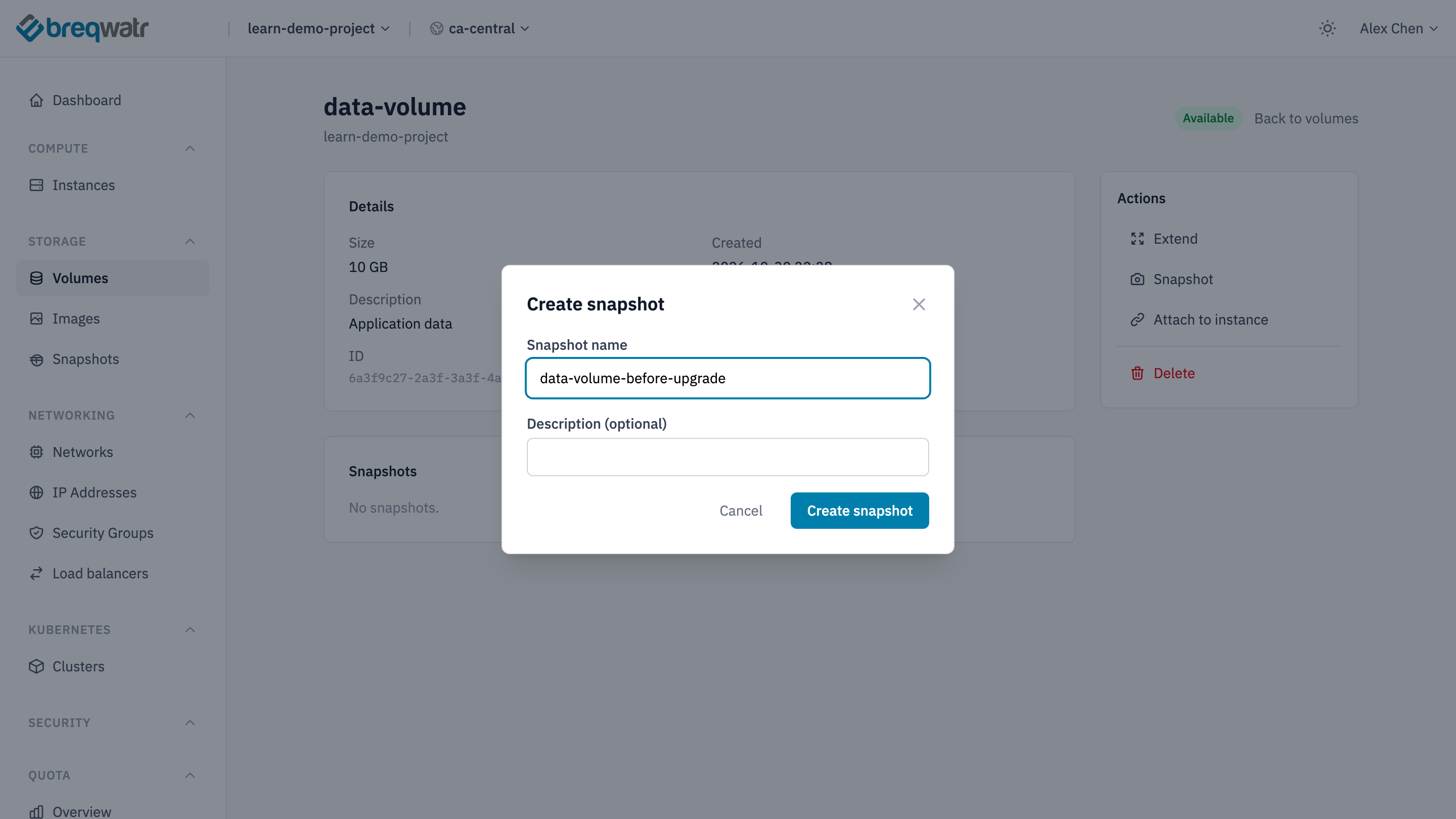
The snapshot appears under Snapshots on the volume's page, and on the project's Snapshots page. An instance's page has a Snapshot action for each of its volumes too.
openstack --os-cloud <cloud-name> --os-volume-api-version 3.66 volume snapshot create --volume data-volume data-volume-before-upgrade
Version 3.66 of the volume API allows a snapshot of an attached volume. Without --os-volume-api-version 3.66, the command fails for an attached volume with "status must be available".
OpenTofu has no resource that takes a volume snapshot. Take it with the portal or the CLI.
The snapshot is ready when its status is Available.
Restore from a snapshot
A snapshot isn't restored over its volume. You make a new volume from it, then attach the new volume in place of the old one, or alongside it to copy files back.
- Open Snapshots and choose Create volume on the snapshot's row.
- Enter a Name, such as
data-volume-restored. The size is fixed to the snapshot's. - Choose Create volume.
openstack --os-cloud <cloud-name> volume create data-volume-restored --snapshot data-volume-before-upgrade
Add --size to make the new volume larger than the snapshot.
data "openstack_blockstorage_snapshot_v3" "before_upgrade" {
  name = "data-volume-before-upgrade"
}

resource "openstack_blockstorage_volume_v3" "data_restored" {
  name        = "data-volume-restored"
  size        = data.openstack_blockstorage_snapshot_v3.before_upgrade.size
  snapshot_id = data.openstack_blockstorage_snapshot_v3.before_upgrade.id
}
Then attach the new volume. It already has the filesystem, so mount it without formatting. Its filesystem has the same UUID as the original's: to attach both to one instance, mount the copy by its device name, such as sudo mount -o ro /dev/vdc /mnt/restore, not by UUID.
Delete a snapshot
Open Snapshots, or the volume's page, and choose Delete on the snapshot's row. Type CONFIRM and choose Delete snapshot. Volumes already made from it aren't affected.
Delete it with the portal or the CLI.
A snapshot counts against your project's storage quota at its volume's size until you delete it, so delete each one once the change it protected has worked.
Check it worked
openstack --os-cloud <cloud-name> volume snapshot listshows the snapshot, its size and the statusavailable.- A volume made from it holds the data as it was when you took the snapshot.
Related
- Reliability: snapshots, backups, and preparing an application for them.
- Back up a volume: a copy kept apart from the volume.
- Instance snapshots: capture a whole instance as an image.
- Rebuild, don't repair: a data volume that outlasts its instances.