How-to
Add a network interface
Put a running instance on a second network by adding a network interface, then set the interface up in its operating system.
Each interface has its own address on its network, and its own security groups. The instance keeps its first interface, which can't be removed.
Before you start
- A running instance, and a second network in the same project and region: see Networks and routers.
- The security groups the new interface needs: see Security groups.
Add the interface
The CLI and OpenTofu create the interface with the security groups you choose. The portal gives a new interface the project's default group.
- In the Breqwatr Cloud Portal (Strata), open Instances and choose the instance.
- In Networks, choose Attach network.
- Pick the Network and choose Attach. The new interface appears in Networks with its address.
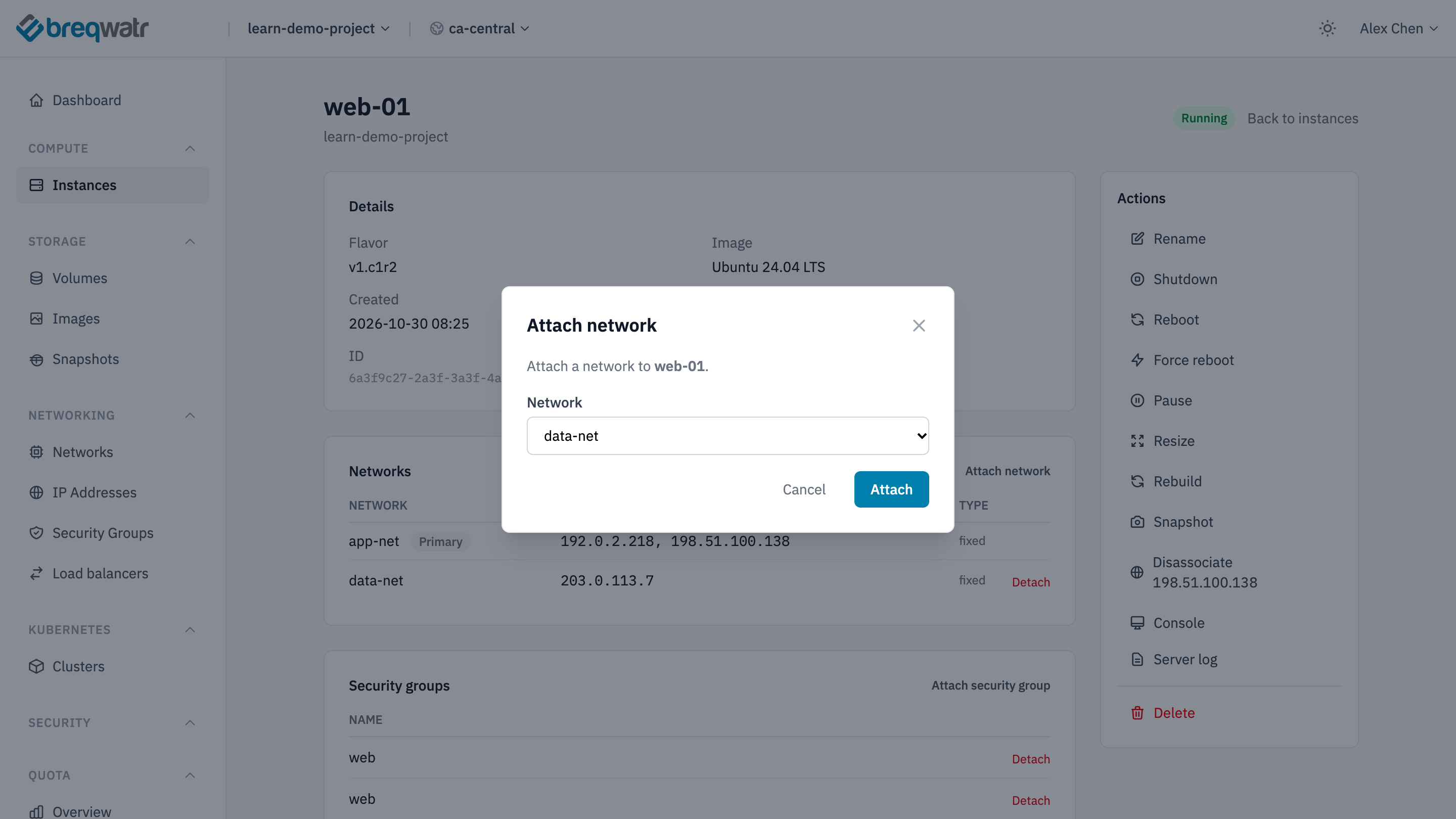
The new interface has only the default security group. Attach security group in Security groups adds a group to every interface on the instance, but lists only groups the instance doesn't have yet. To give the new interface a group the instance already has, use the CLI, with the interface's port from openstack --os-cloud <cloud-name> port list --server web-01:
That replaces the interface's groups with web. Without --no-security-group, it adds web to the groups the interface has.
Create the interface, as a port with its security groups, then add it to the instance:
openstack --os-cloud <cloud-name> port create web-01-data --network data-net --security-group web
openstack --os-cloud <cloud-name> server add port web-01 web-01-data
openstack server add network web-01 data-net also works, and gives the interface the default group, as the portal does.
resource "openstack_networking_port_v2" "web_01_data" {
  name               = "web-01-data"
  network_id         = openstack_networking_network_v2.data.id
  security_group_ids = [openstack_networking_secgroup_v2.web.id]
}

resource "openstack_compute_interface_attach_v2" "web_01_data" {
  instance_id = openstack_compute_instance_v2.web_01.id
  port_id     = openstack_networking_port_v2.web_01_data.id
}
Set it up in the operating system
If the second network has a router, its DHCP offers a default gateway too, and the instance can end up with two routes to the internet. Keep the first interface's: the steps below do that. A network with no gateway, as in A network with no internet, offers no route, so there's nothing to keep.
On Ubuntu, the new interface stays down until you configure it, and a restart doesn't change that. Find its name, the one with no address:
Then create /etc/netplan/60-second-interface.yaml, with the interface's name in place of ens7:
use-routes: false takes the address from DHCP but not the routes. Apply it:
The setting is kept across restarts. Other distributions configure interfaces with their own tools.
Windows gets the new interface's address from DHCP on its own. Restart the instance once first: Windows names the interface again at that restart, and forgets settings made before it. Then, in PowerShell as Administrator, find the interface by its address:
If the network has a router, make Windows prefer the first interface's route, with the new interface's alias in place of Ethernet:
Windows uses the route with the lower metric, and the setting is kept across later restarts.
Remove an interface
In Networks on the instance's page, choose Detach on the interface's row, type CONFIRM and confirm. The first interface, marked Primary, has no Detach.
Remove both resources and apply.
Remove the interface's configuration from the operating system too: on Ubuntu, delete the netplan file and run sudo netplan apply.
Check it worked
openstack --os-cloud <cloud-name> port list --server web-01 -c "Fixed IP Addresses"lists an address on each network.- In the instance,
ip -br addron Linux, orGet-NetIPAddresson Windows, shows the new address. - An instance on the second network reaches the new address, on a port the interface's security groups allow.
- The instance still reaches the internet through the first interface.
Related
- Networking model: networks, subnets and routers.
- Networks and routers: create the second network.
- Security groups: the rules on each interface.