Getting started
Application credentials and clouds.yaml
Tools such as the OpenStack CLI, OpenTofu and Ansible don't sign in with your password and MFA. They use an application credential: an ID and a secret for one project, which you can set to expire and can revoke at any time.
What an application credential is
- One project. A credential works in the project it was created for, with your roles in that project.
- Every region. The same credential works in
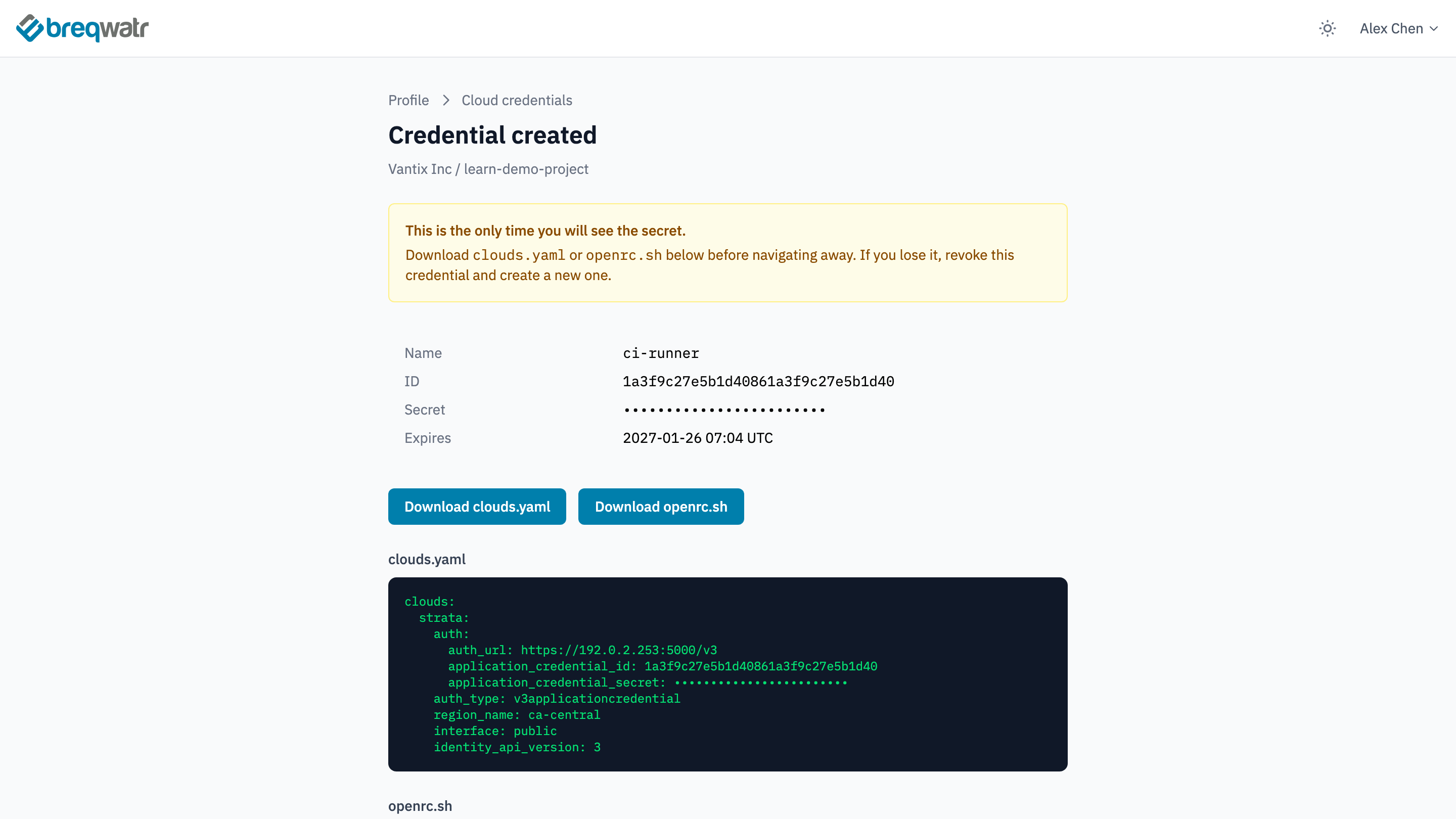
ca-centralandca-east; you choose the region per command or in the file. - A secret shown once. The Breqwatr Cloud Portal (Strata) shows the secret only when you create the credential. If you lose it, revoke the credential and create a new one.
- Yours. A credential belongs to the person who created it. Each person creates their own.
Restricted and unrestricted
Credentials are restricted unless you choose otherwise. A restricted credential can't create other application credentials or let a service act on your behalf. That's all the CLI, OpenTofu and Ansible need for the tasks in this course.
The Unrestricted (dangerous) option removes those limits. It's needed only to create Kubernetes clusters from the CLI, and the Kubernetes on BKS tutorial covers when and how to use it. Leave it unticked for everything else.
Create a credential
-
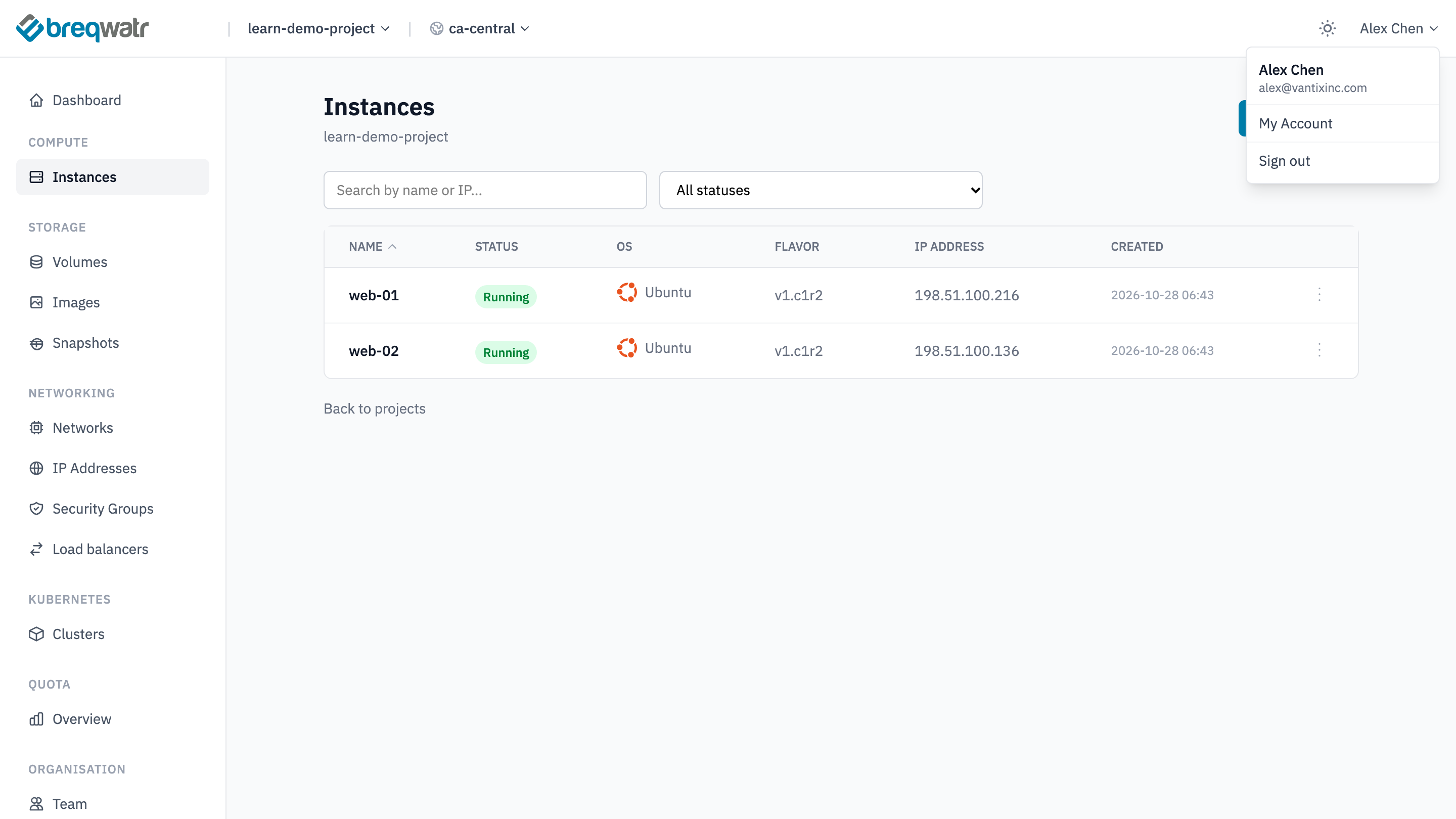
Open your account menu at the top right and choose My Account.
-
In Cloud credentials, choose Manage cloud credentials, then Create credential.
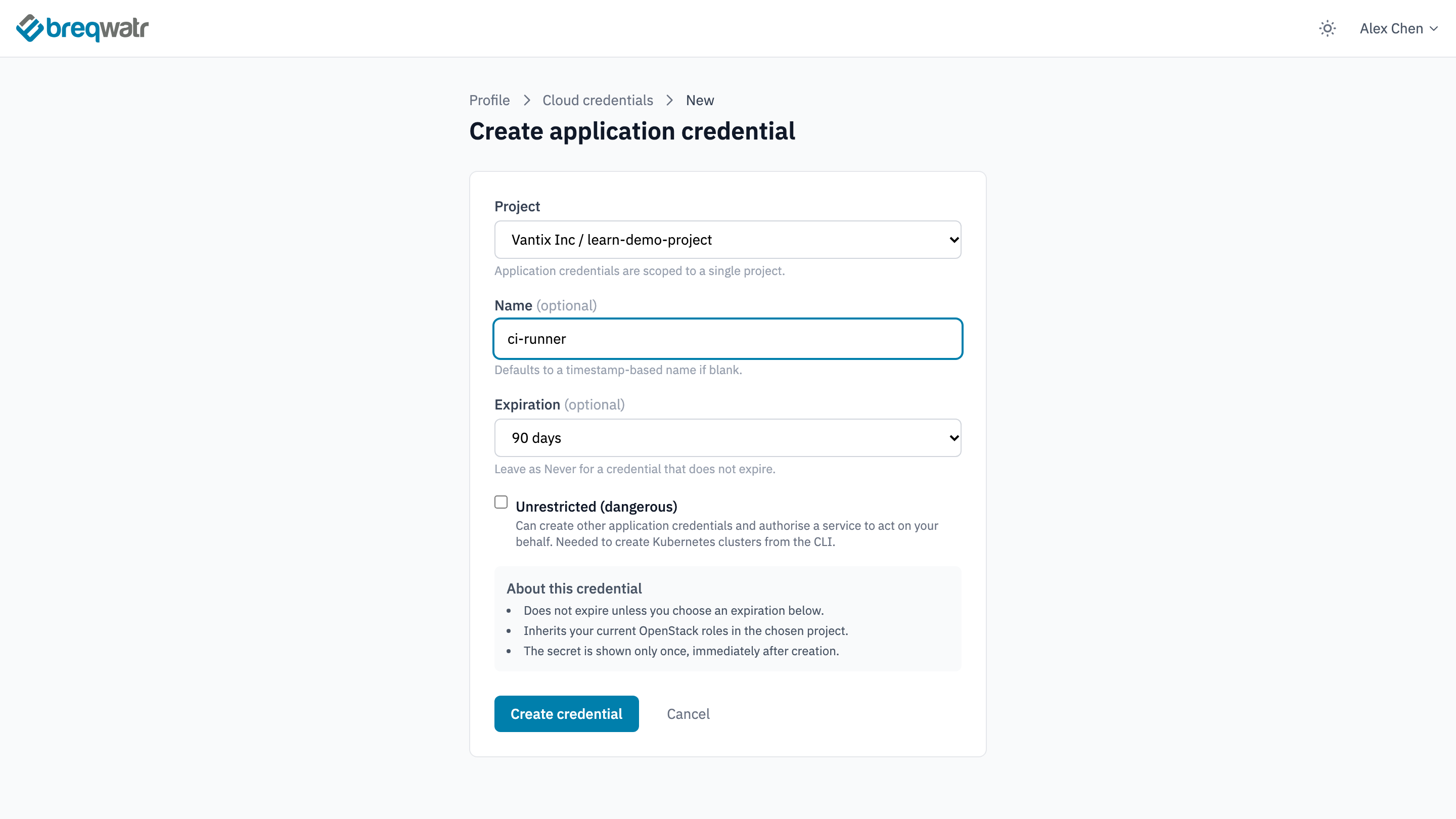
- Choose the Project. Optionally, give the credential a Name that says what it's for.
- Choose an Expiration: 30 days, 90 days or 1 year. Never is also offered, but set an expiry: a credential that expires stops working on its own if it's forgotten or leaks.
-
Leave Unrestricted (dangerous) unticked, and choose Create credential.
-
Choose Download clouds.yaml. The secret isn't shown again after you leave this page.
The clouds.yaml file
The downloaded file looks like this, with your own values in place of the angle-bracket placeholders:
clouds:
  <cloud-name>:
    auth:
      auth_url: <auth-url>
      application_credential_id: <application-credential-id>
      application_credential_secret: <application-credential-secret>
    auth_type: v3applicationcredential
    region_name: ca-central  # also: ca-east
    interface: public
    identity_api_version: 3
The cloud name
The name on the line under clouds: is the cloud name. Tools use it to pick the entry: the CLI with --os-cloud, and OpenTofu and Ansible with the OS_CLOUD environment variable. Examples in this course write it as <cloud-name>; replace that with the name in your file.
A file can hold more than one entry, for example one for each project. Give each entry its own name, and choose between them with --os-cloud.
Regions
region_name sets the region the tools use, and the comment after it names the other region. To use the other region for one command, add --os-region-name:
Where to keep it
Put the file in the .config/openstack folder in your home folder, where the CLI, OpenTofu and Ansible all look for it:
| Windows | macOS and Linux | |
|---|---|---|
clouds.yaml location |
%USERPROFILE%\.config\openstack\clouds.yaml |
~/.config/openstack/clouds.yaml |
Treat the file like a password. Don't email it, share it or commit it to version control.
The openrc.sh alternative
The portal also offers Download openrc.sh, the same credential as environment variables. It suits tools and scripts that read OS_ variables rather than clouds.yaml. With these variables set, leave out --os-cloud.
PowerShell can't run openrc.sh, so set the same variables with $env:, using the values from the file:
$env:OS_AUTH_URL = "<auth-url>"
$env:OS_AUTH_TYPE = "v3applicationcredential"
$env:OS_APPLICATION_CREDENTIAL_ID = "<application-credential-id>"
$env:OS_APPLICATION_CREDENTIAL_SECRET = "<application-credential-secret>"
$env:OS_REGION_NAME = "ca-central"
$env:OS_INTERFACE = "public"
$env:OS_IDENTITY_API_VERSION = "3"
openstack server list
The variables last until you close the terminal.
Revoke a credential
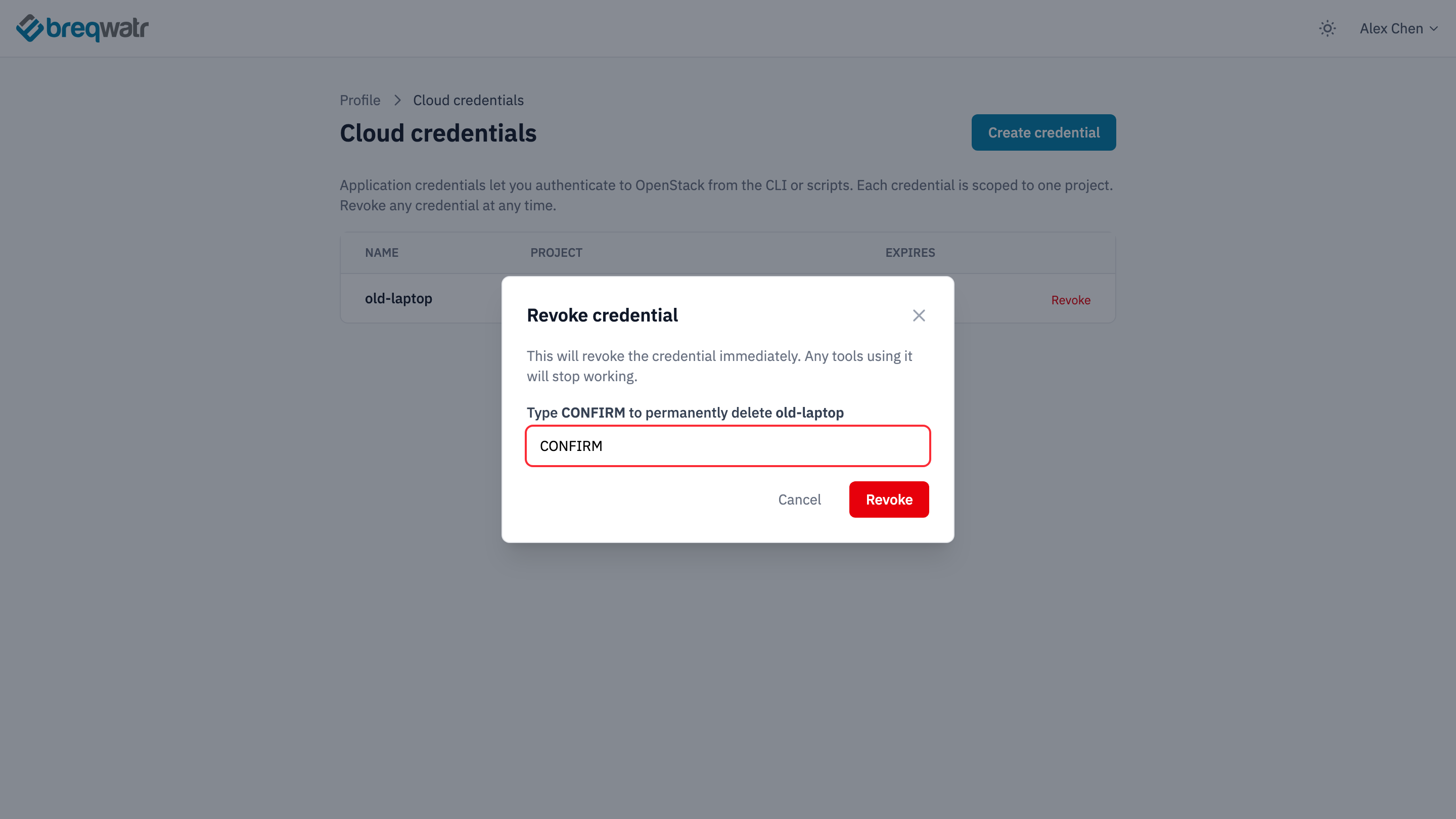
On the Cloud credentials page, choose Revoke on the credential's row, type CONFIRM, and choose Revoke. Any tool using it stops working straight away.
To see the credentials you have from the CLI:
Impact
- Each tool or pipeline can have its own credential, revoked on its own without affecting the others.
- A credential that leaks reaches one project, and stops working when it expires or is revoked.
Common anti-patterns
- Credentials that never expire: a forgotten credential keeps working for as long as it exists.
- One credential everywhere: revoking it breaks every tool at once, and the audit trail can't tell them apart.
- Secrets in code: a
clouds.yamlcommitted to a repository, or a secret baked into an image or a script. - Unrestricted by default: ticking Unrestricted for tools that don't need it.
Related Well-Architected pillars
- Security and sovereignty: restricted, expiring credentials for each tool.
- Operational excellence: a credential per tool or pipeline.
Next
Install the OpenStack CLI and check it reaches your project with this file.
Further reading
- Install the OpenStack CLI: install the CLI and run your first commands with
clouds.yaml.