Getting started
A tour of the portal
The Breqwatr Cloud Portal (Strata) is where you look at and manage what runs in your projects, and where you manage your account. This page walks through the areas you'll use first and what each one is for.
Before you start
- A Breqwatr Cloud account, signed in: see Your account and MFA.
- The project pages are empty until your organisation has a project; Projects, users and roles, next, shows how to create one.
The layout
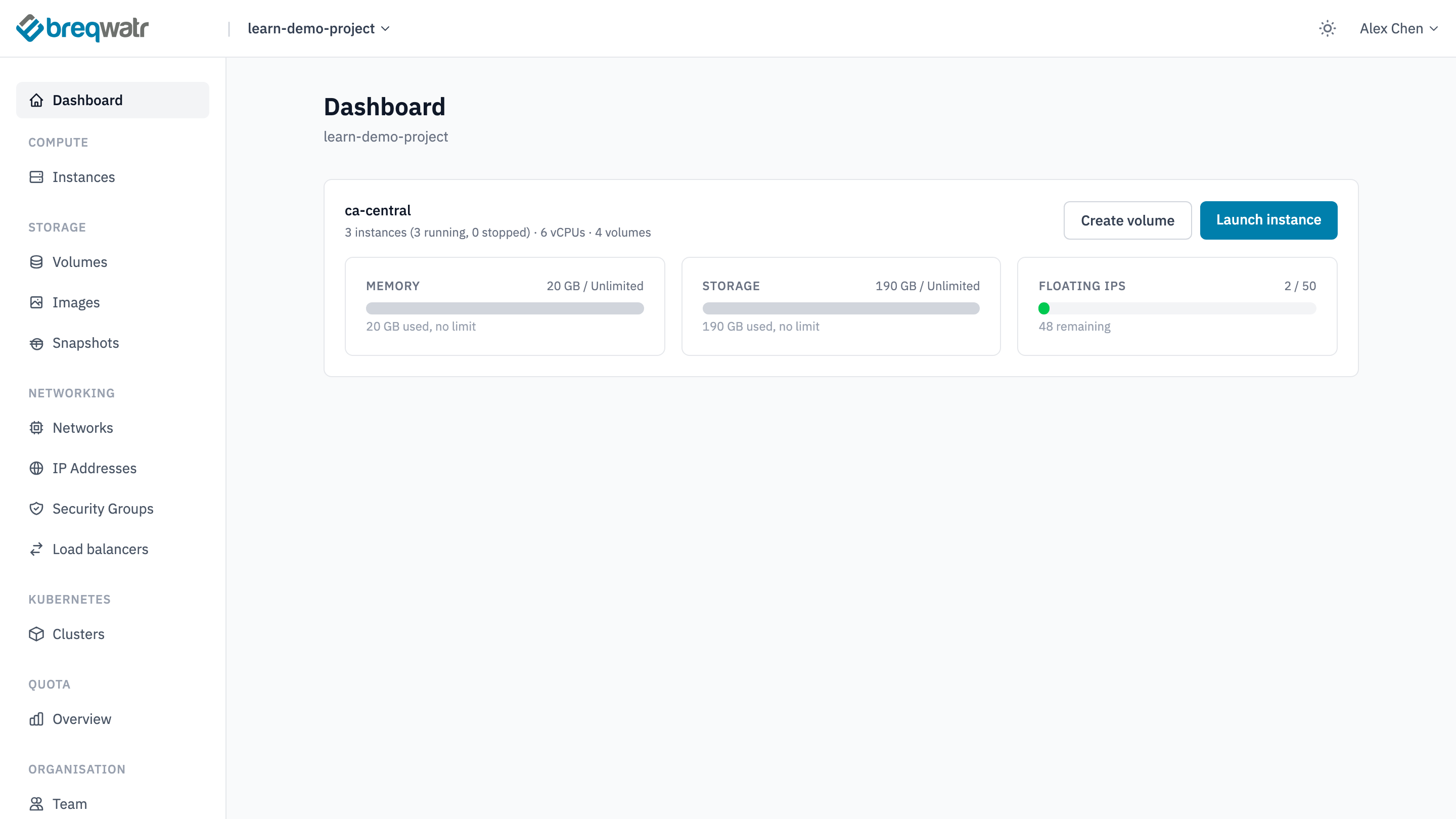
Every page has the same frame:
- The top bar shows the project you're working in and, on the project's pages, the region. Your account menu is on the right.
- The sidebar lists the project's resources by type, then the organisation's pages.
- The dashboard sums up the project with a card for each region: how many instances and volumes it has there, how much of its quota is used, and shortcuts to Create volume and Launch instance. Below the cards is the project's recent activity.
Projects and regions
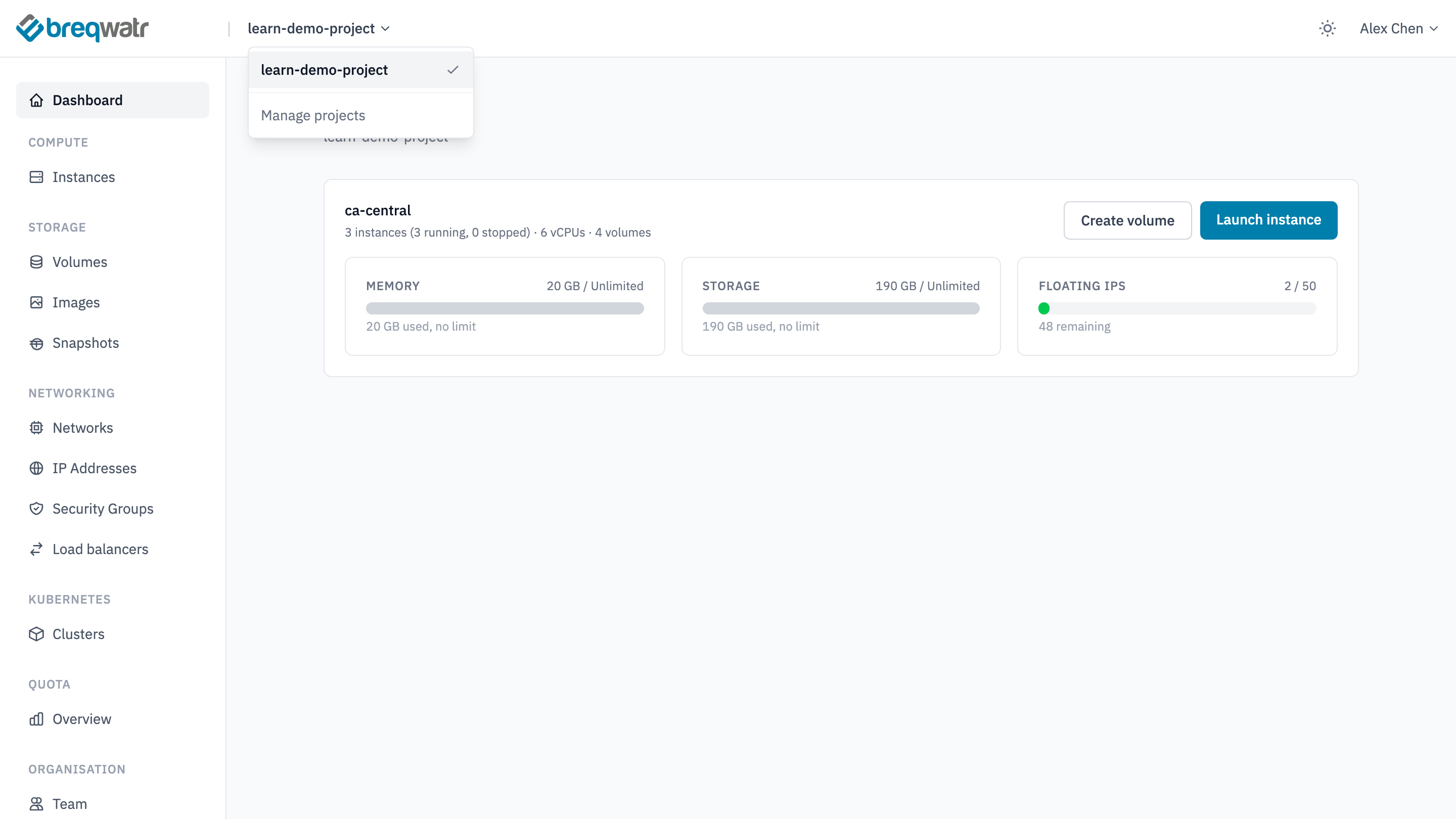
Choose the project name in the top bar to switch projects. Everything in the sidebar, from instances to load balancers, belongs to the project shown there.
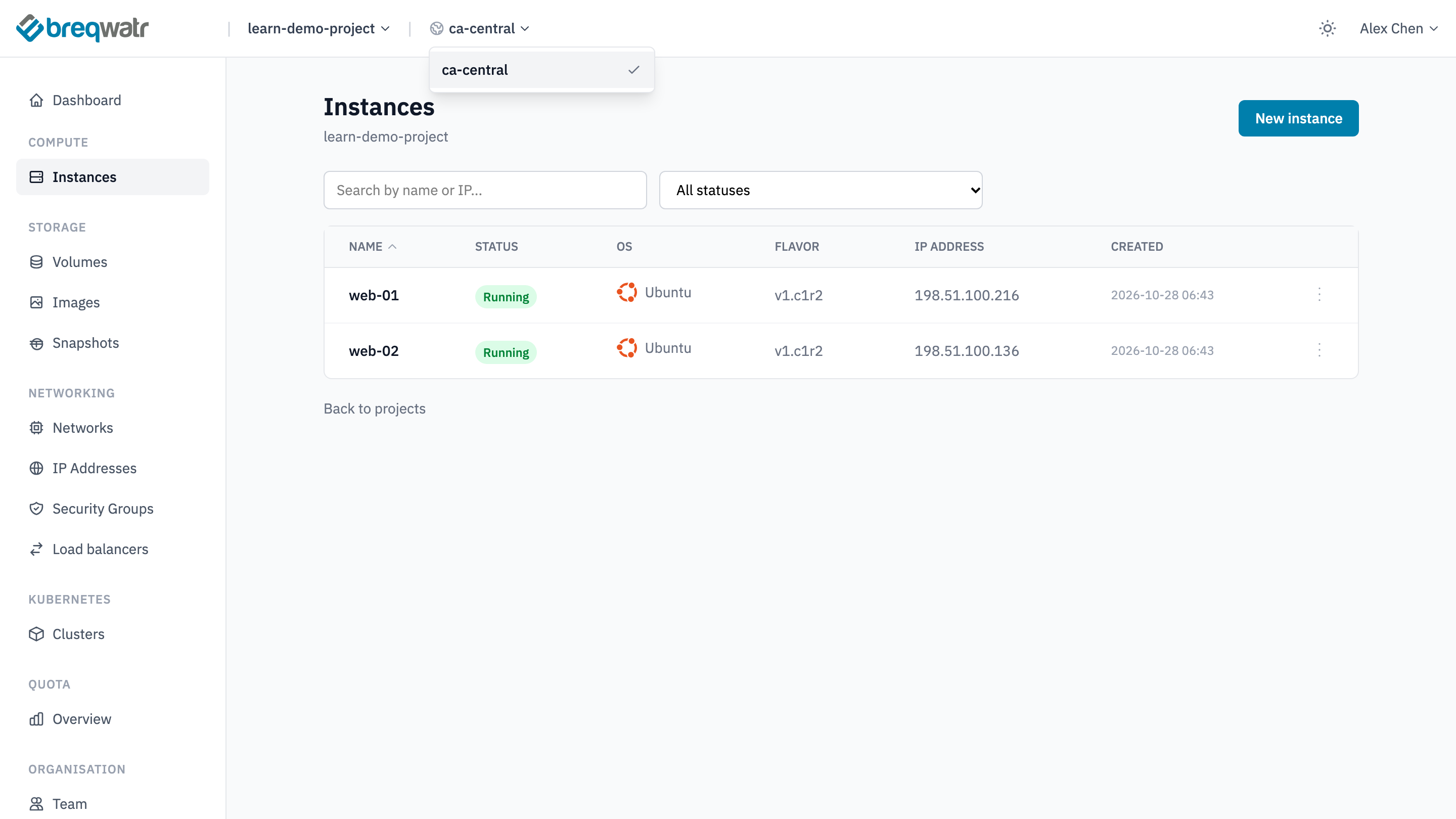
On the project's pages, choose the region next to the project name to switch regions. On the public cloud the regions are ca-central (Ontario), the default, and ca-east (Quebec). Resources and quotas are per region: an instance in ca-central doesn't appear while ca-east is selected.
Compute
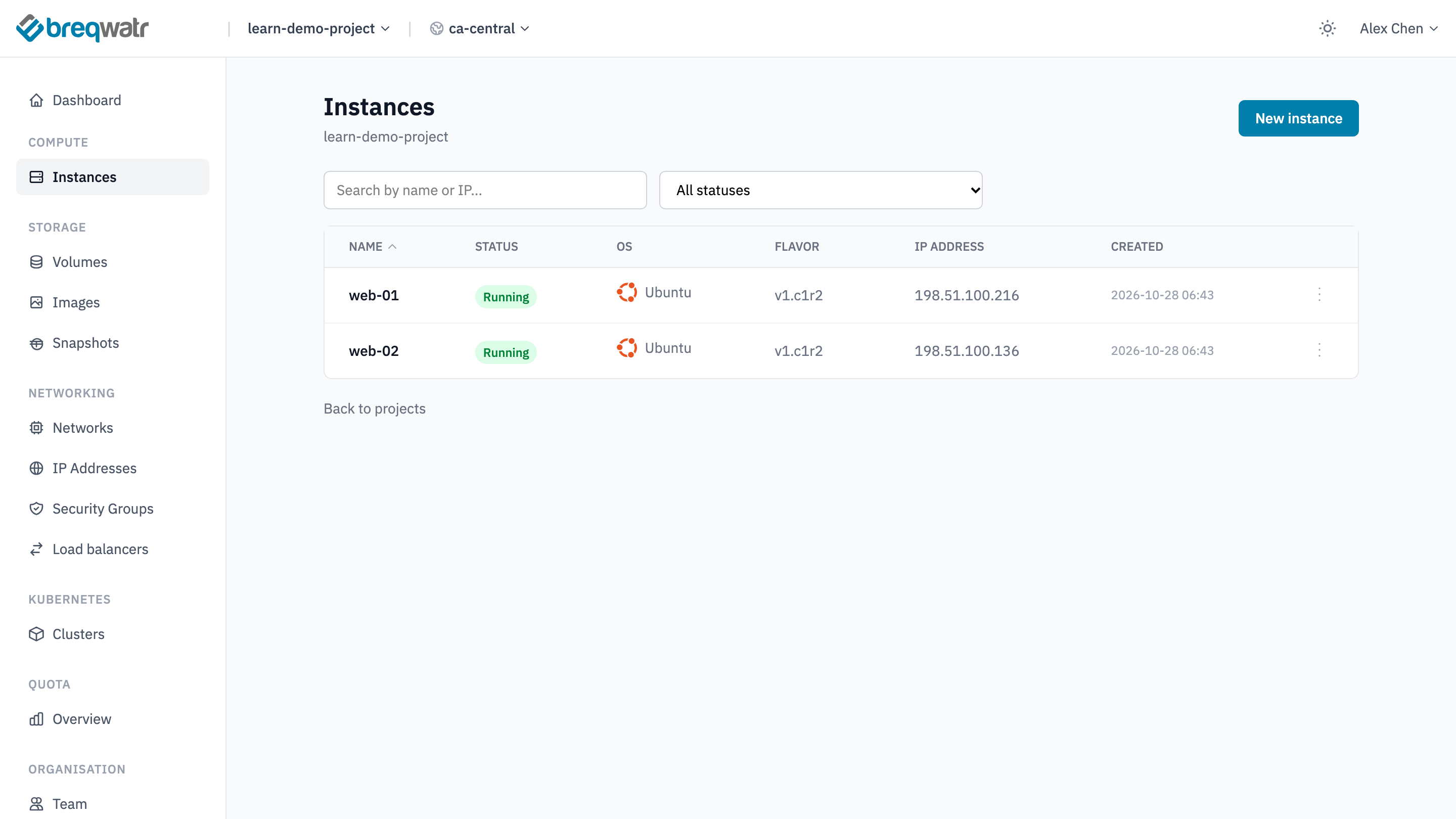
Instances lists the project's instances with their status, operating system, flavour and address. Choose an instance to see its networks, security groups and volumes, and the actions you can take on it, including Console, Server log, Resize and Delete.
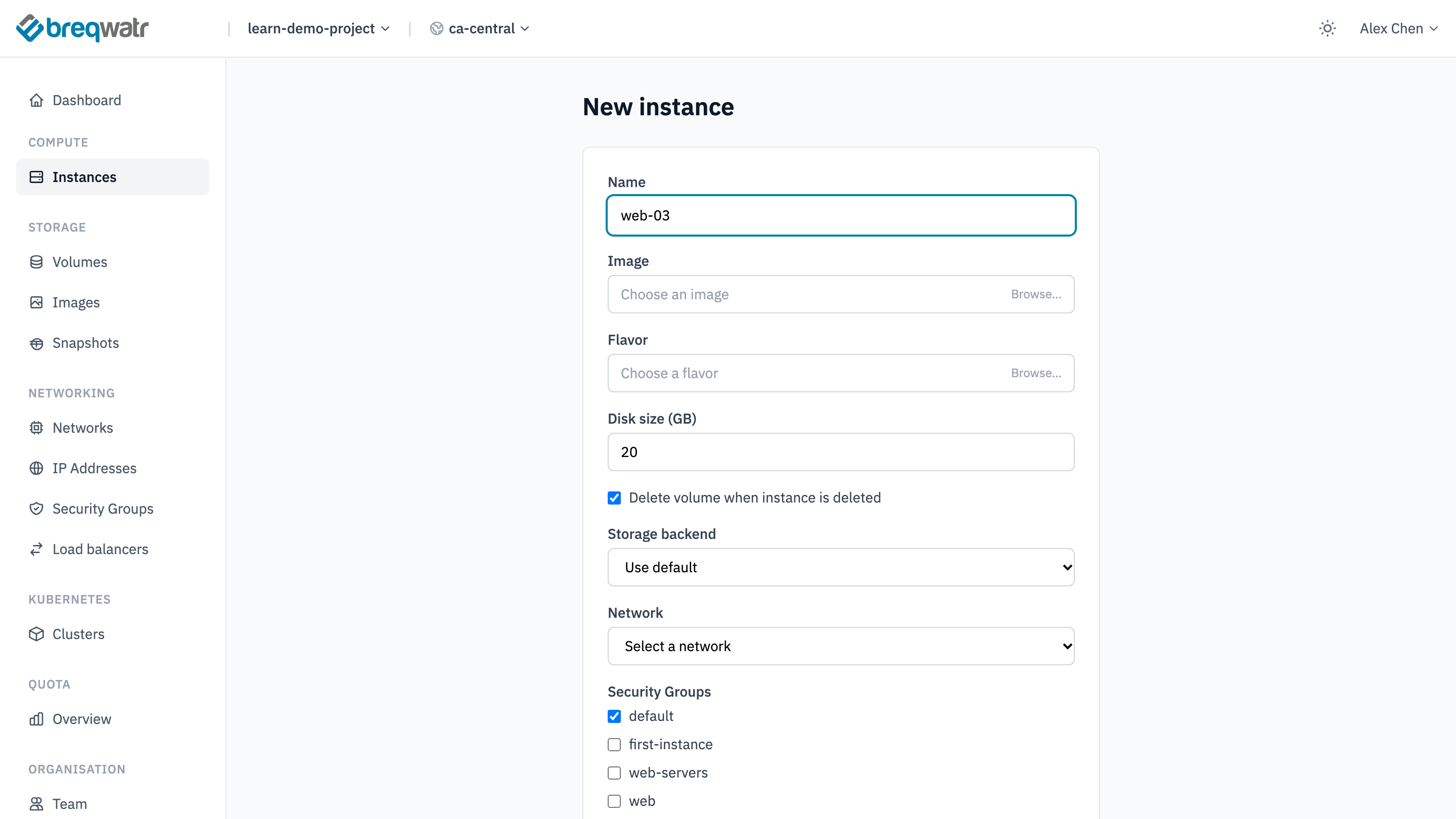
New instance launches one. You choose an image and a flavour from their Browse... pickers, the size of the root volume, a network, security groups and optional user data. An SSH Key field appears once you choose a Linux image. Launch your first instances walks through it.
Storage
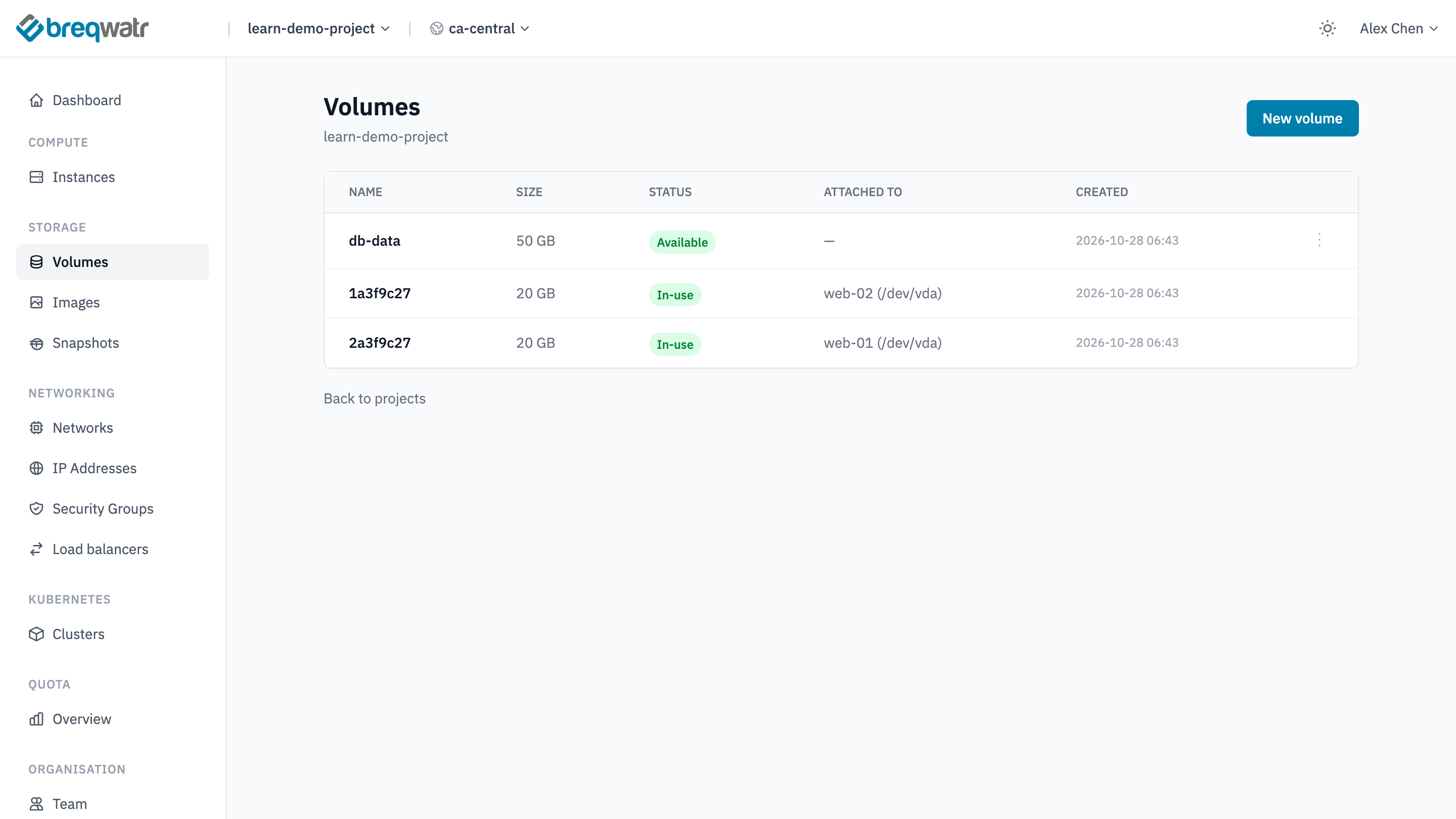
- Volumes lists the project's block storage volumes: every instance's root volume, and any data volumes you create.
- Images lists the public images Breqwatr provides and your project's own.
- Snapshots lists volume snapshots.
Images, flavours and instances explains how they fit together.
Networking
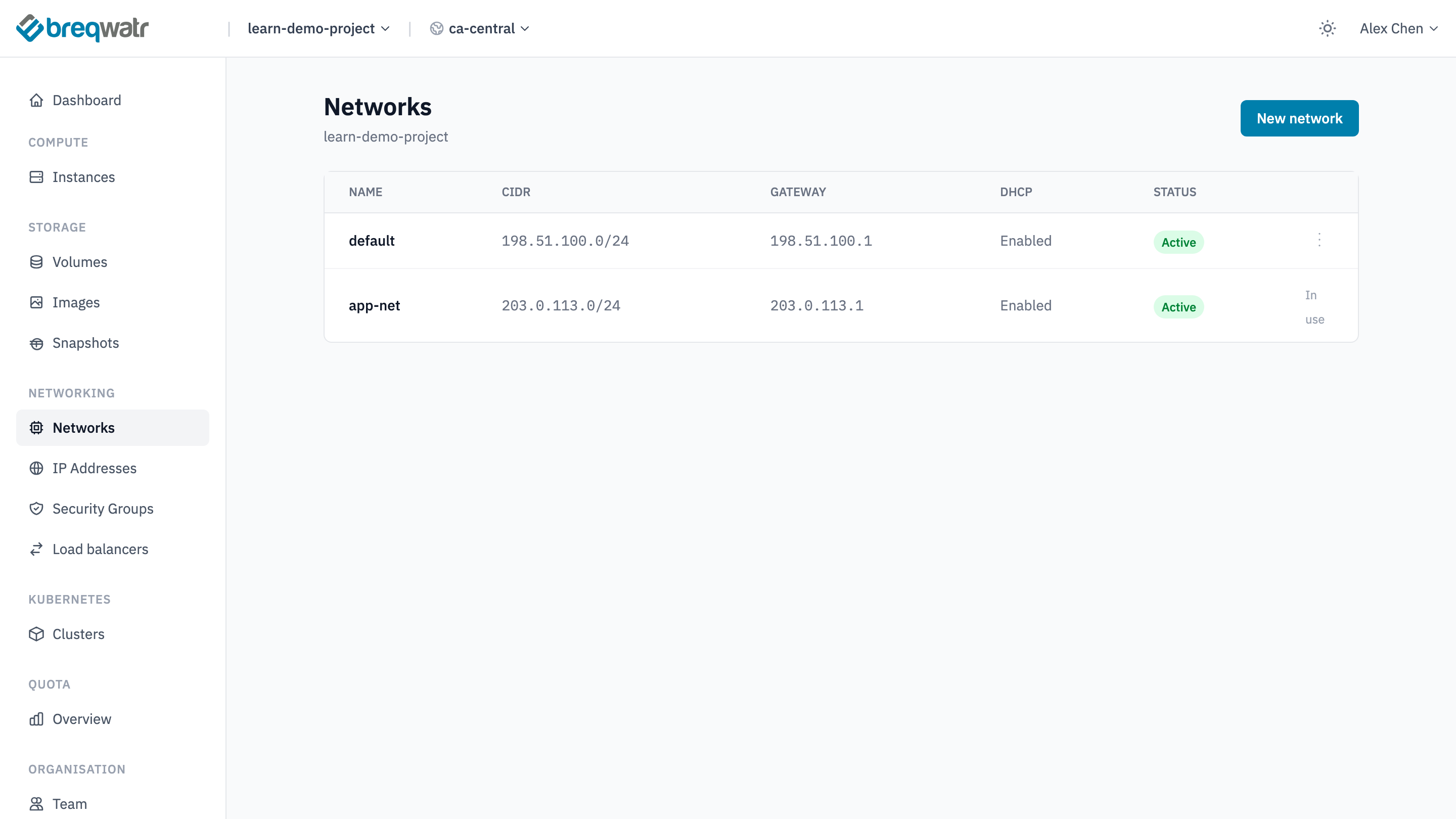
- Networks lists the project's networks and their address ranges.
- IP Addresses is where you allocate floating IPs and associate them with instances.
- Security Groups holds the rules that decide what traffic reaches your instances.
- Load balancers lists the project's load balancers.
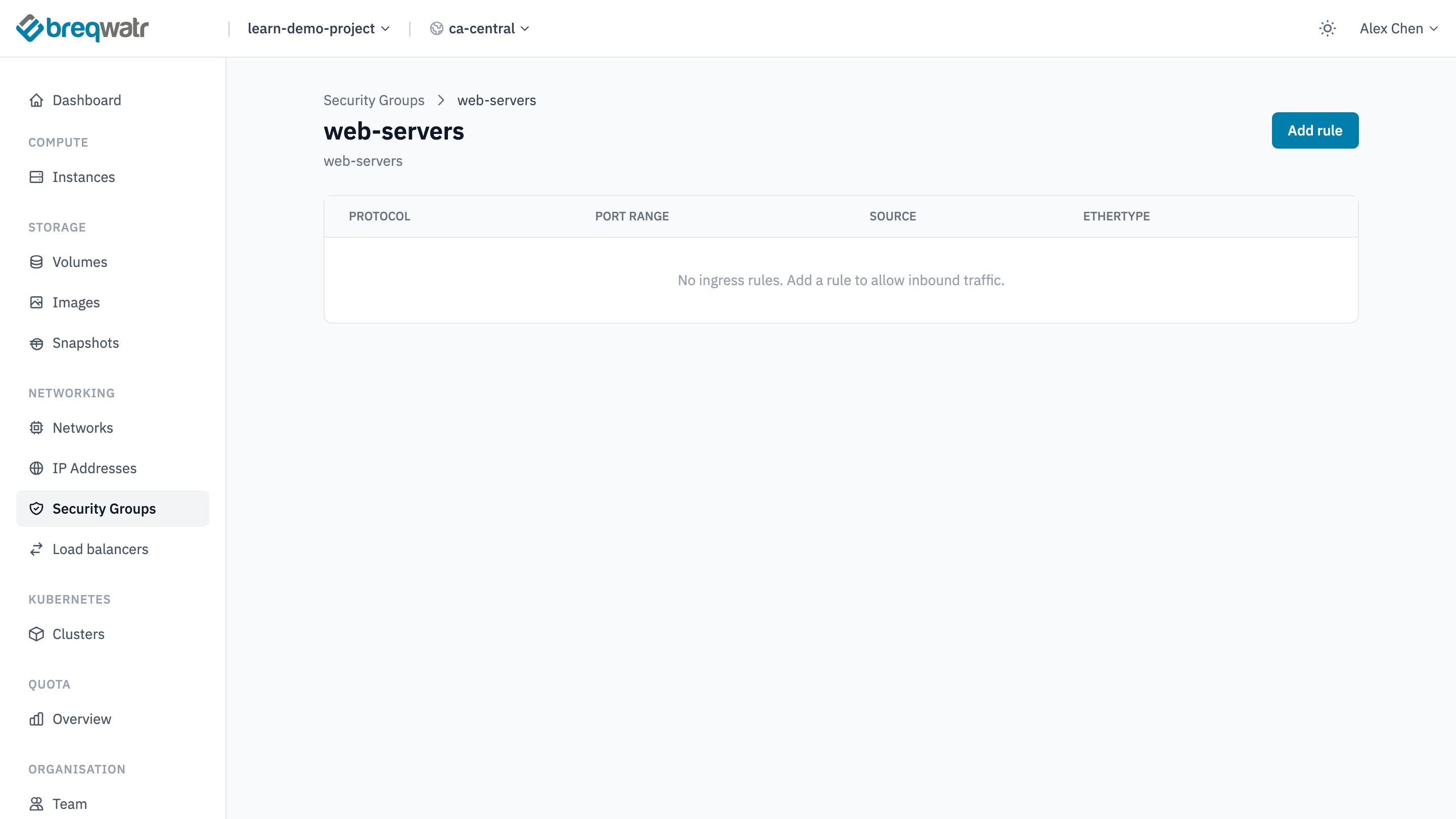
Choose a security group to see its rules and add one with Add rule. Networking model covers networks, floating IPs and security groups.
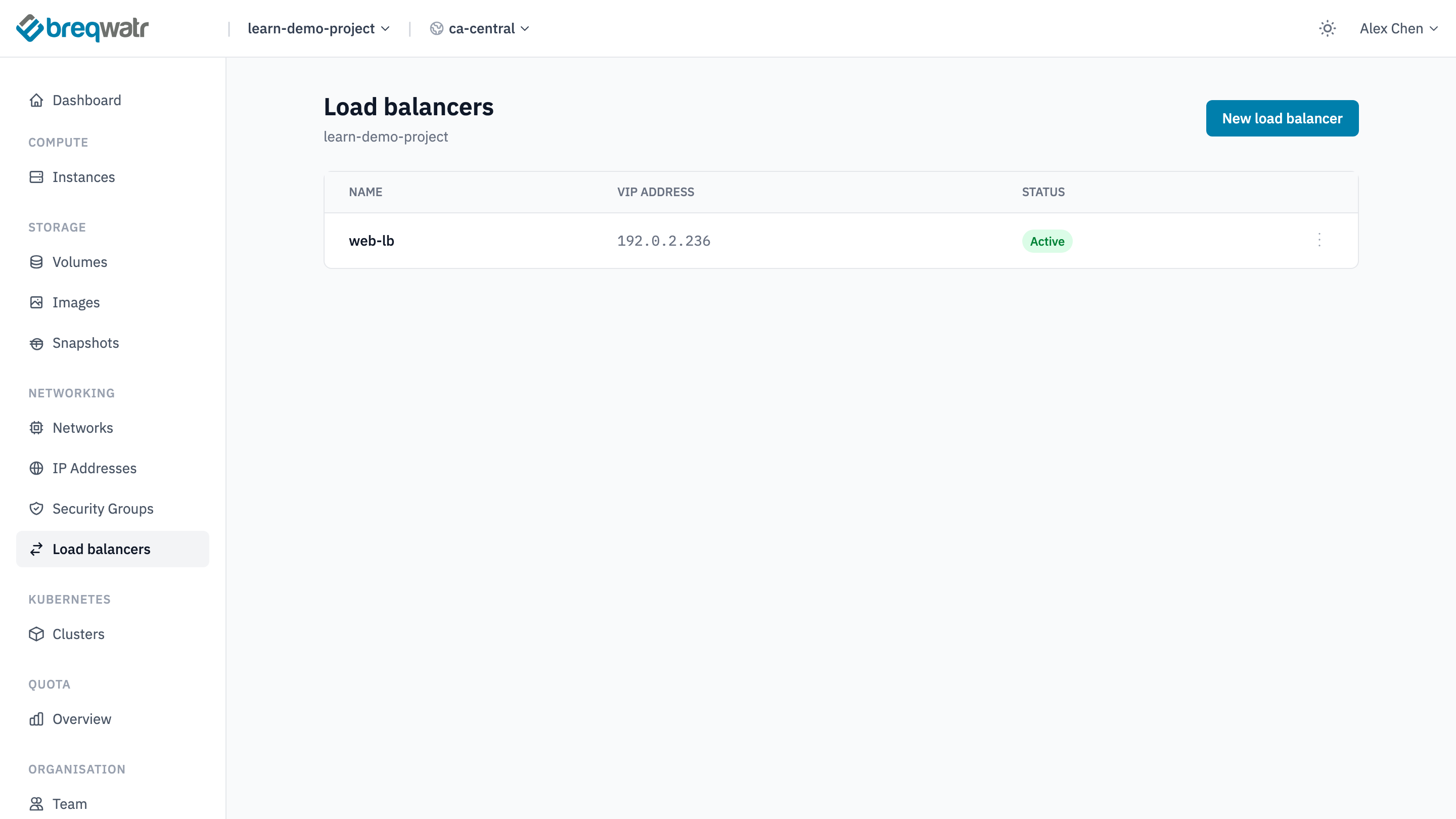
A three-tier web app builds an application behind two load balancers.
Kubernetes
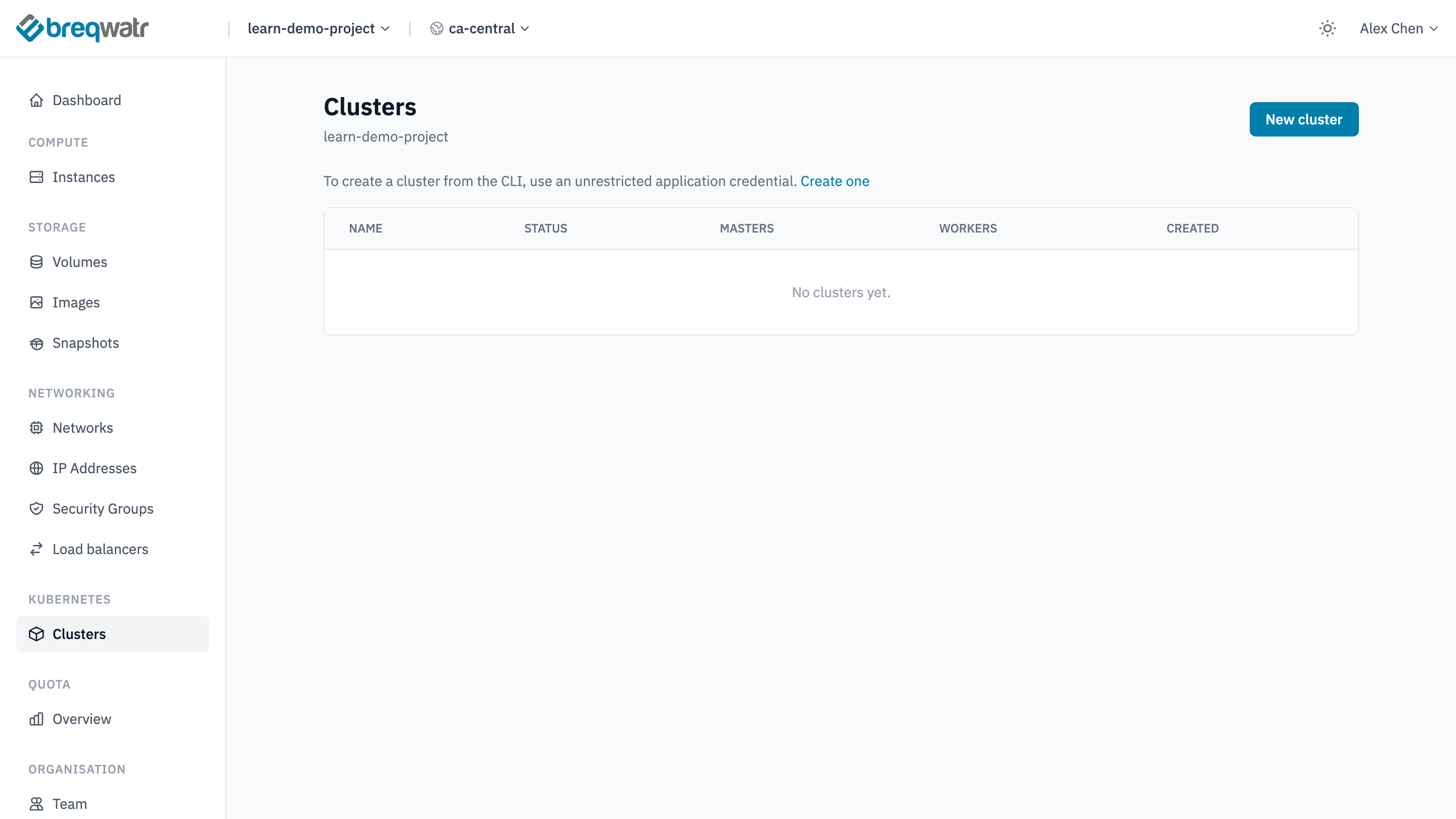
Clusters lists the project's Kubernetes clusters, which run on BKS. You own each cluster you create, its control plane and worker nodes included, and everything running on it. As the page notes, creating a cluster from the CLI needs an unrestricted application credential; Application credentials and clouds.yaml explains the difference.
Quota
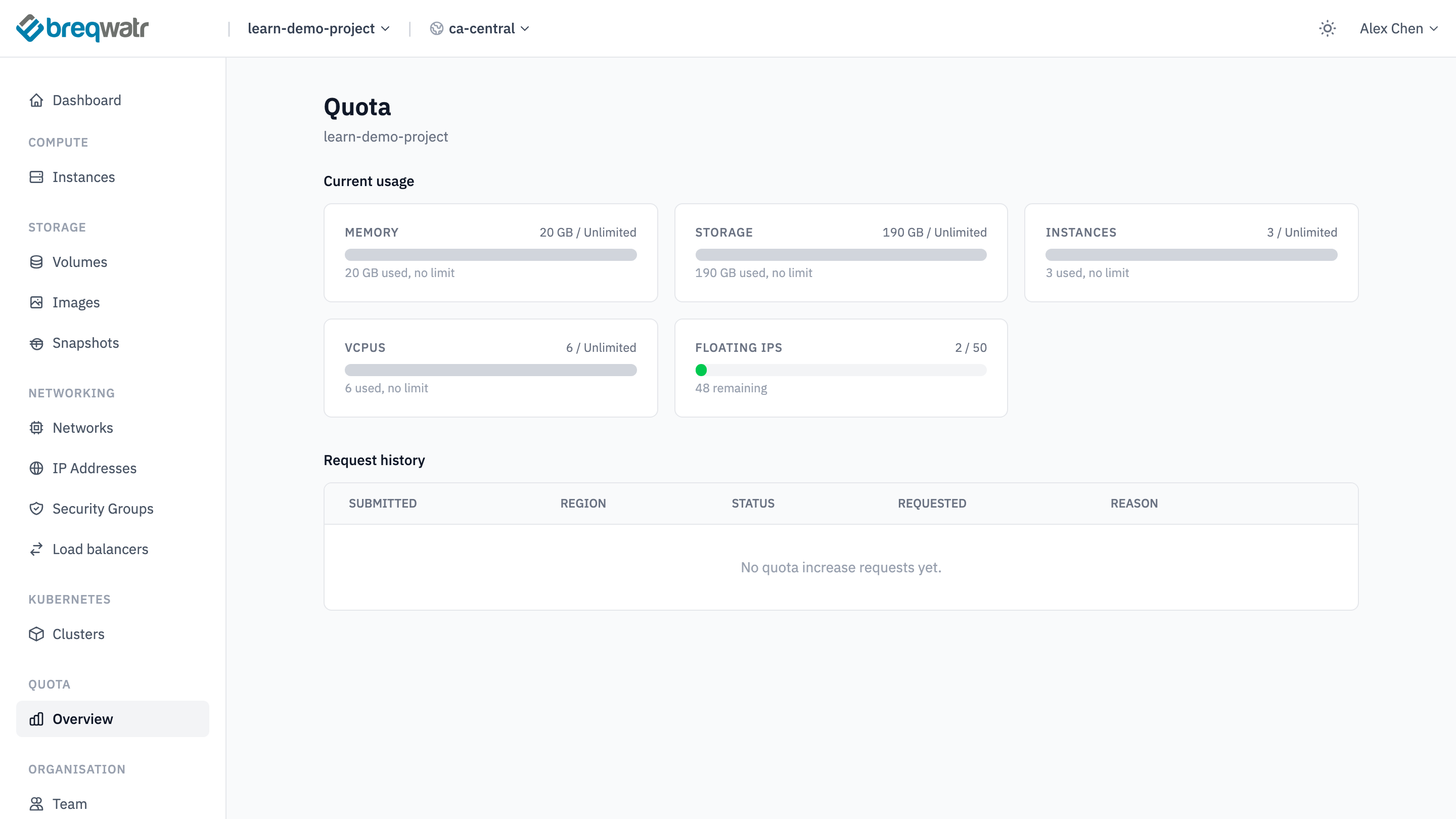
Quota → Overview shows how much of the project's quota is used in the selected region, and the history of quota increase requests. Quotas and your bill explains quotas and how to ask for more.
Your account
Open the account menu at the top right and choose My Account.
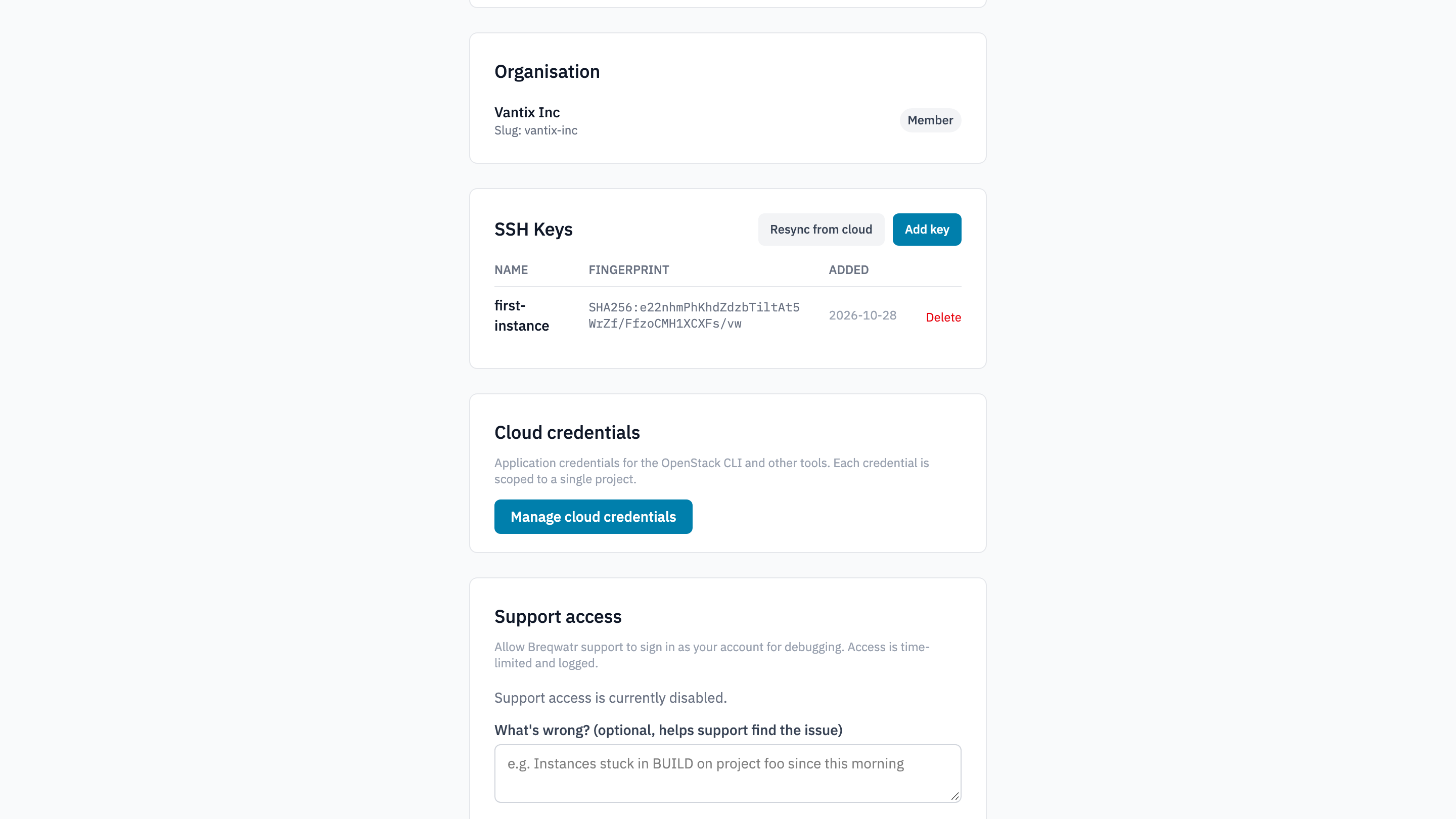
Your profile holds settings that belong to you rather than to a project:
- Details and Password: your name, email, timezone and language, and changing your password.
- Organisation: the organisation you're working in, and your role in it.
- SSH Keys: the public keys you can choose when you launch a Linux instance.
- Cloud credentials: application credentials for the OpenStack CLI, OpenTofu and Ansible.
- Two-factor authentication: your MFA settings and recovery codes.
- Support access: lets Breqwatr support sign in as you for a limited time while they help with a problem. It's off until you turn it on.
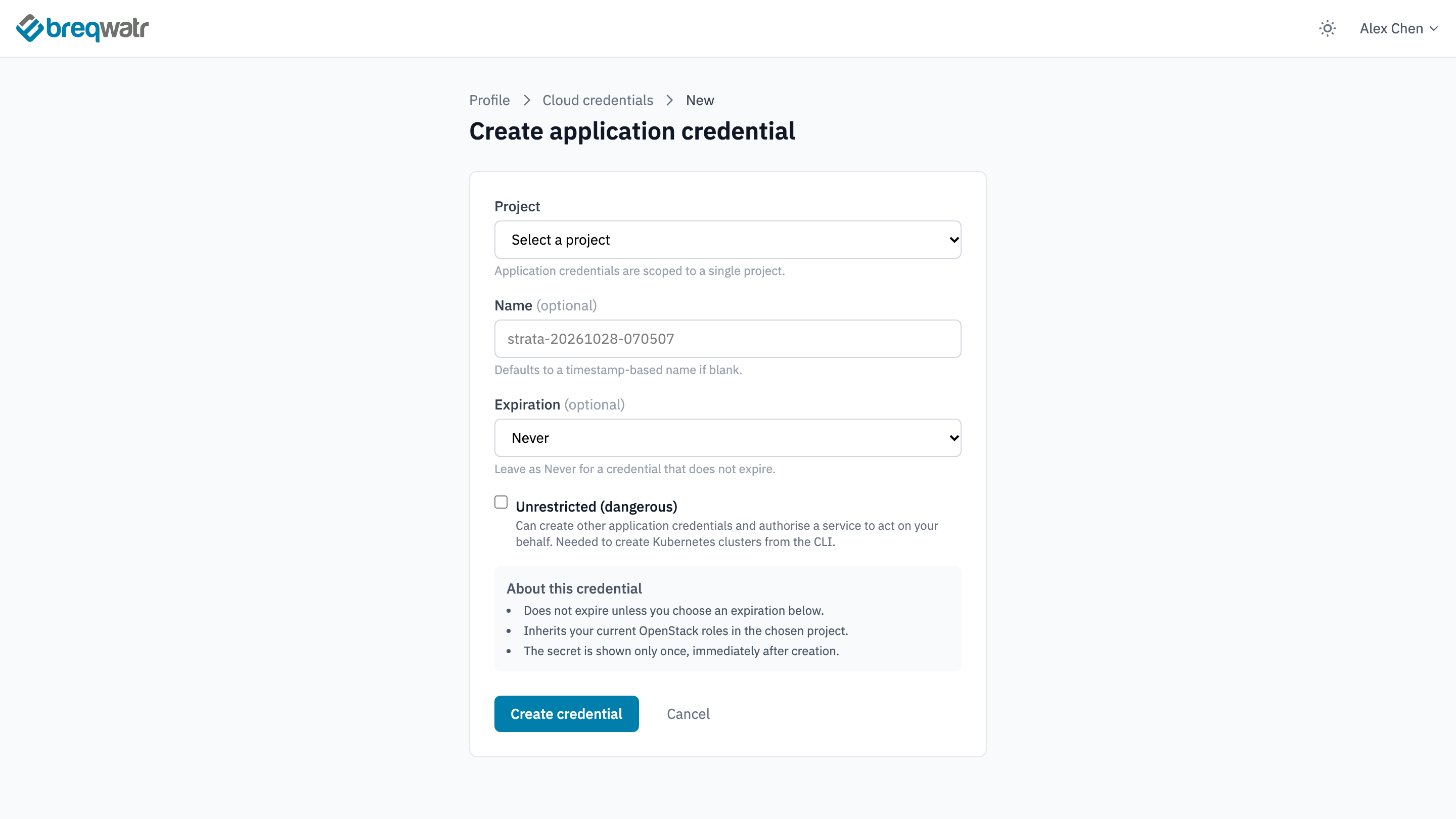
Cloud credentials → Manage cloud credentials → Create credential makes a credential for one project. Expiration starts at Never; set an expiry instead. Application credentials and clouds.yaml covers it step by step.
The organisation
The last part of the sidebar is the organisation's:
- Team: the people in the organisation and their roles.
- Projects: the organisation's projects.
Billing, with the month's usage, invoices and pricing, is for organisation owners and admins. Quotas and your bill covers it.
Impact
- Each project's resources are in one place, grouped by type, so it's easy to see what a project runs and what it's using.
- The portal and the API show the same resources: an instance created with the OpenStack CLI or OpenTofu appears in the portal straight away, and the other way round.
Related Well-Architected pillars
- Operational excellence: looking in the portal and changing through code.
- Spend efficiency: the dashboard and quota pages show what a project holds.
Next
Projects, users and roles explains how your organisation, its projects and its people fit together.
Further reading
- Launch your first instances: the launch form, step by step.
- HTTP and TCP load balancers: listeners, pools, members and a floating IP.