How-to
Custom images
Upload your own image to a project, launch instances from it, and delete it when you no longer need it.
An image you upload belongs to your project: other projects don't see it. Breqwatr Cloud's public images stay alongside it, and can't be changed or deleted.
Before you start
- Access to the project.
- The image file, in one of these disk formats:
qcow2,raw,vmdk,vdi,vhdoriso. Most Linux cloud images areqcow2. Images from VMware are usuallyvmdk, from VirtualBoxvdi, and from Hyper-Vvhd. - For a Linux image you'll sign in to with a key pair, cloud-init in the image, so it can add your key at first boot. Distributions' cloud images include it.
For Windows, Breqwatr Cloud's Windows Server images include the licence and cloudbase-init: see Windows images.
Upload an image
- In the Breqwatr Cloud Portal (Strata), open Images and choose Upload image.
- Fill in:
- Name: such as
app-base. - Disk Format: the file's format.
- SSH key required?: Yes for an image that adds your key at first boot, so the launch form asks for one. No for an image you sign in to some other way.
- Image File: the file. The portal takes files up to 20 GB.
- Name: such as
- Choose Upload image.
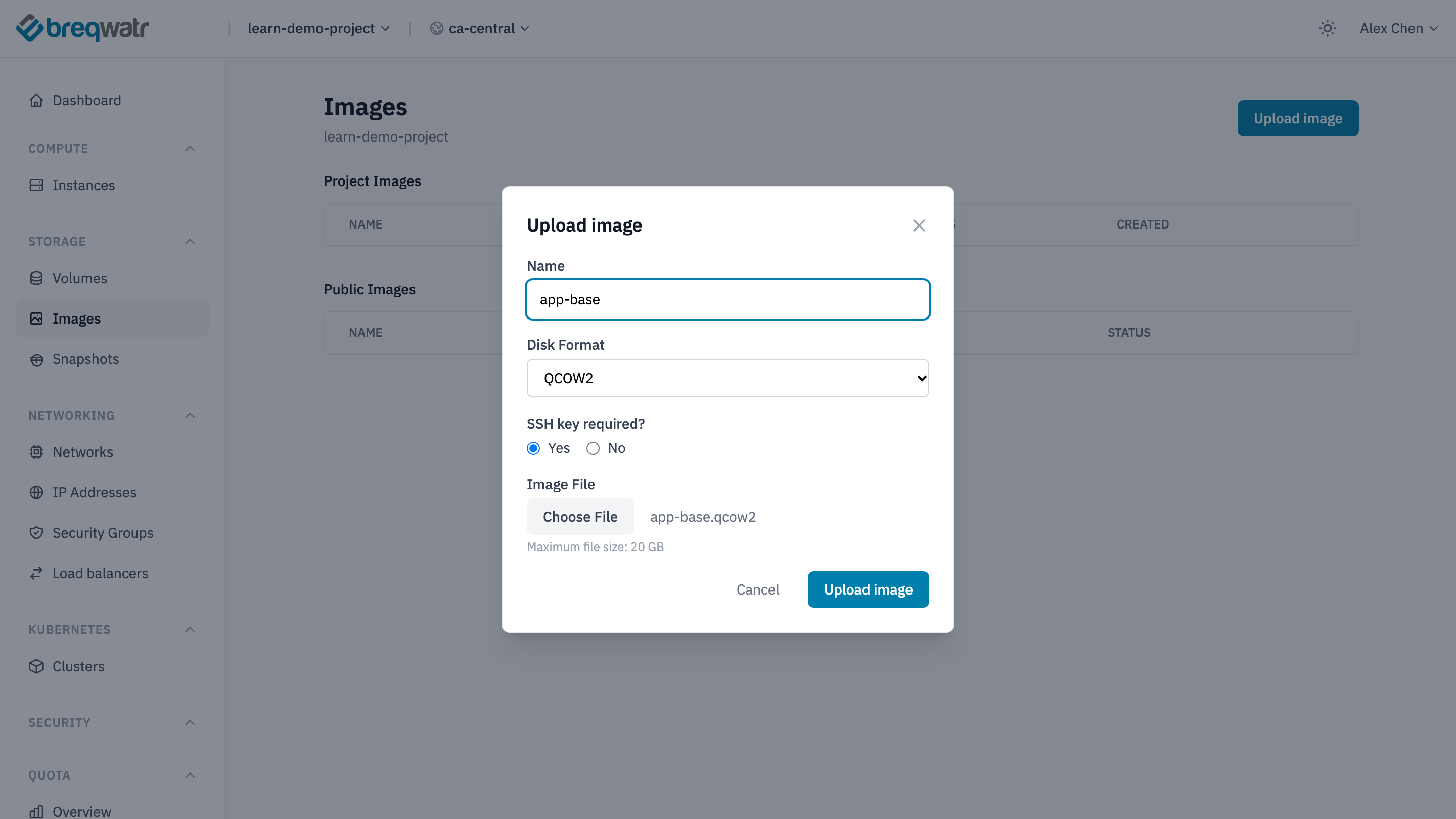
The image appears under Project Images, as Queued or Saving while it uploads, then Active.
openstack --os-cloud <cloud-name> image create app-base \
  --disk-format qcow2 --container-format bare --private \
  --file app-base.qcow2 --property ssh_required=true
--private keeps the image to your project, as the portal does. ssh_required=true is the portal's SSH key required?: use false for an image you sign in to some other way.
Launch from the image
Launch as from any image: pick it under Project Images on the portal's launch form, or give its name or ID to openstack server create or OpenTofu. The instance boots from a new volume made from the image, so the volume must be at least as large as the image's disk.
An image made from an instance, with openstack server image create, is listed under Project Images too. For an instance, which boots from a volume, that image points at volume snapshots: see Instance snapshots.
Delete an image
Instances already launched from the image keep running: their volumes are copies.
Check it worked
openstack --os-cloud <cloud-name> image show app-base -c status -c visibility -c disk_formatshowsactive,privateand the format.- An instance launched from the image reaches
ACTIVE, and its boot log shows the operating system starting: see Connect to an instance.
Related
- Images, flavours and instances: what an image is.
- Pets vs cattle: building instances from images, not by hand.
- Flavours and images: the public images.
- Instance snapshots: images made from instances.