How-to
Key pairs
Make an SSH key pair on your computer, add its public key to Breqwatr Cloud, and pick it when you launch a Linux instance. You sign in to the instance with the private key.
The private key never leaves your computer. Breqwatr Cloud holds only the public key, and puts it on a Linux instance when the instance first boots. Windows instances don't use key pairs: you set the Administrator password on the console instead, as in Connect to an instance.
Before you start
- An OpenSSH client. It's built into Windows 10 and later, macOS and Linux.
Make a key pair
ssh-keygen asks for a passphrase, which protects the private key if someone copies it. This makes web-key, the private key, and web-key.pub, the public key, in the .ssh folder in your home folder. Use -t rsa -b 4096 instead of -t ed25519 only if a tool you use needs RSA.
Add the public key
- In the Breqwatr Cloud Portal (Strata), open your account menu at the top right and choose My Account.
- In SSH Keys, choose Add key.
- Enter a Name, such as
web-key. Names use letters, numbers, spaces,-and_. - Paste the whole of
web-key.pubinto Public key: one line that starts withssh-ed25519orssh-rsa. Choose Add key.
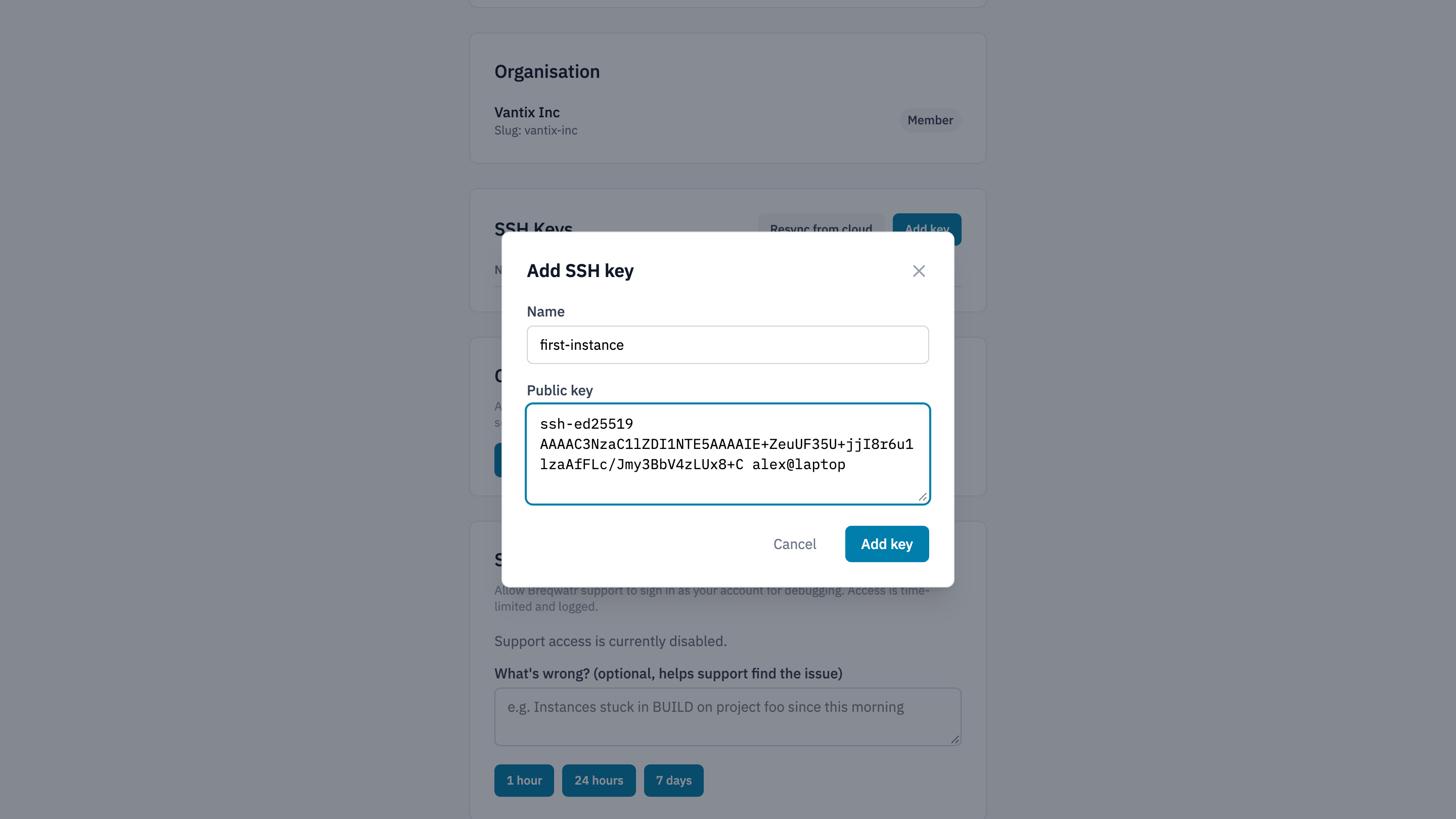
The key belongs to your account, so it's available in every project you can work in. It shows Syncing for a few seconds while the portal adds it to each project.
In PowerShell, the path is $HOME\.ssh\web-key.pub.
The key pair belongs to your user, so it works in every project you can work in. The portal's launch form lists the keys on your My Account page: to add a key pair made with the CLI there, choose Resync from cloud in SSH Keys.
Launch with the key
Pick the key when you launch a Linux instance: SSH Key on the portal's launch form, --key-name web-key with openstack server create, or key_pair in OpenTofu. The image's default user then accepts it: see Connect to an instance.
An instance keeps the key it was launched with. Adding, changing or deleting a key pair later doesn't change instances that are already running.
Check it worked
- The key is listed in SSH Keys on My Account, or by
openstack --os-cloud <cloud-name> keypair list. -
Its fingerprint matches your public key's. My Account shows the SHA256 form, which
ssh-keygen -l -f ~/.ssh/web-key.pubprints. The CLI shows the MD5 form, whichssh-keygenprints with-E md5:
Delete a key
Instances launched with the key still accept it. To stop a key working on an instance, remove its line from ~/.ssh/authorized_keys on the instance.
Related
- Connect to an instance: sign in over SSH or RDP, or on the console.
- Launch your first instances: a key pair used from start to finish.
- Security and sovereignty: keeping access to your instances limited.