How-to
HTTP and TCP load balancers
Put a load balancer in front of two or more instances, so one address spreads traffic across them and stops sending it to an instance that fails.
A load balancer has an address on your network, its VIP. A listener takes traffic on one protocol and port, and passes it to a pool: the instances that serve it, called members, and the algorithm that picks one for each connection. A health monitor checks the members and takes a failed one out of the pool. A floating IP on the VIP makes the load balancer reachable from the internet.
Before you start
- Two or more instances running the application, on the same network: see Launch your first instances. The network needs a router to the internet if the load balancer is to have a floating IP: see Networks and routers.
- The instances' security group allows the application's port from the network's subnet, such as
10.0.0.0/24. Traffic and health checks reach the members from the load balancer's address on the subnet, not from the internet: see Security groups.
Create the load balancer
- In the Breqwatr Cloud Portal (Strata), open Load balancers and choose New load balancer.
- Enter a Name, such as
web-lb, and pick the VIP network: the network the instances are on. Add a Description if you like. - Choose Create load balancer.
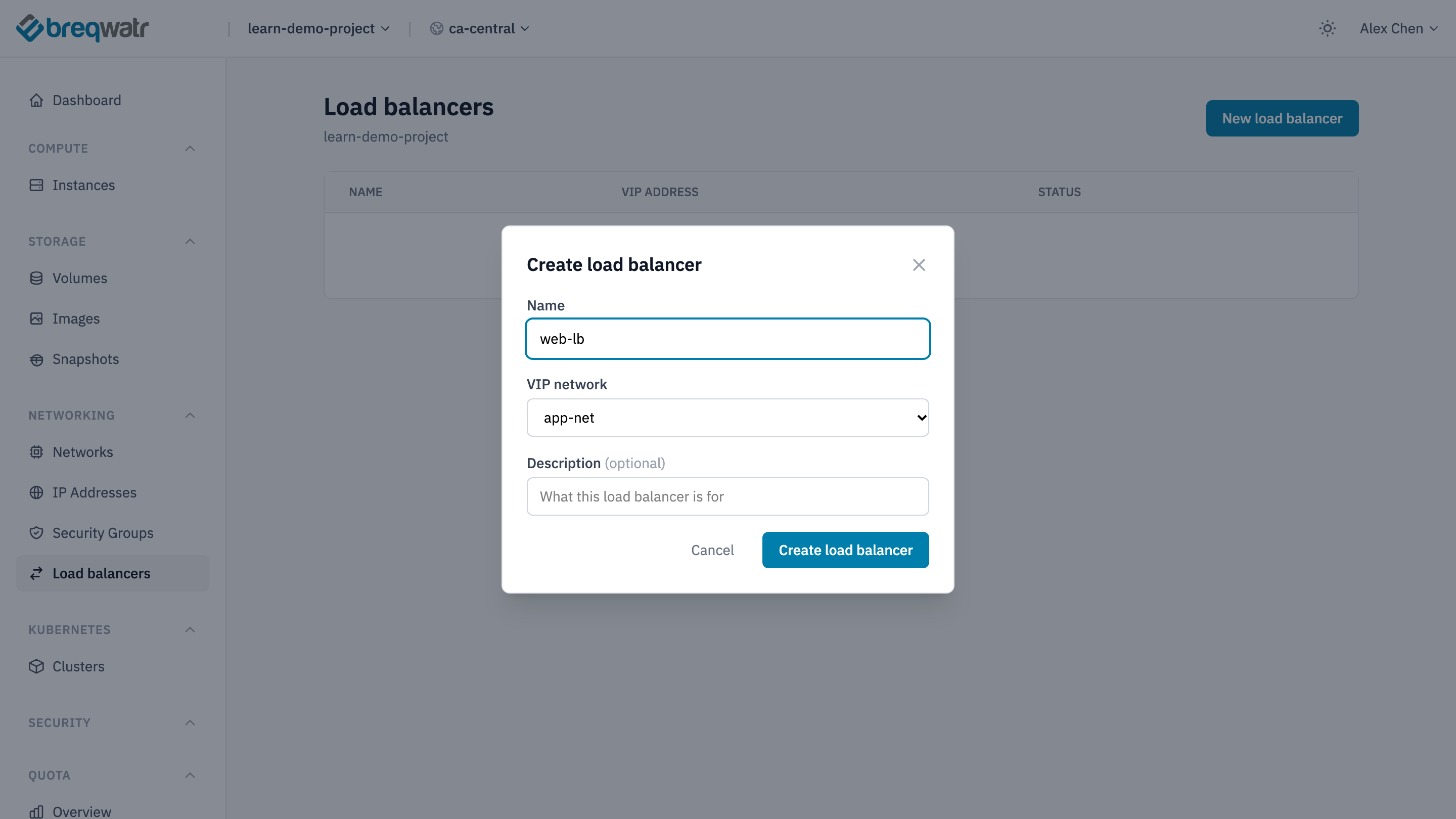
Creating a load balancer takes a minute or two. It's ready when its status is Active in the portal, or ACTIVE in the CLI, with a VIP address on the subnet.
Add a listener and its members
A listener's protocol decides what the load balancer understands of the traffic:
| Protocol | Use it for |
|---|---|
HTTP |
Websites and APIs over plain HTTP. Health monitors can check a URL |
HTTPS |
HTTPS, passed through still encrypted: the members hold the certificate and decrypt it |
TCP |
Any other protocol over TCP, such as a database or a custom service |
UDP |
Protocols over UDP, such as DNS |
Decrypting HTTPS at the load balancer isn't offered: use HTTPS and keep the certificate on the members.
The algorithm decides which member gets each new connection:
| Algorithm | Picks |
|---|---|
ROUND_ROBIN |
Each member in turn |
LEAST_CONNECTIONS |
The member with the fewest open connections, for long-lived connections |
SOURCE_IP |
The same member for every connection from one client address |
SOURCE_IP_PORT |
The same member for each client address and port |
- Open the load balancer and choose Add listener.
- Pick the Protocol, enter the Port it listens on, such as
80, and pick the Load-balancing algorithm. - Choose Add listener. The portal creates the listener's pool with it.
- When the listener is Active, open the menu on its row and choose Add members.
- Tick each instance, enter the port the application listens on, such as
80, and choose Add members.
The portal lists the project's running instances. Each member's Health shows NO_MONITOR until the pool has a health monitor, and the portal has no health monitor settings: add one with the CLI or OpenTofu, as in Health monitors.
Create the listener, its pool, and a member for each instance, with the instance's address on the subnet:
openstack --os-cloud <cloud-name> loadbalancer listener create web-lb --name web-http --protocol HTTP --protocol-port 80 --wait
openstack --os-cloud <cloud-name> loadbalancer pool create --name web-pool --listener web-http --protocol HTTP --lb-algorithm ROUND_ROBIN --wait
openstack --os-cloud <cloud-name> loadbalancer member create web-pool --name web-01 --subnet-id app-subnet --address <web-01-address> --protocol-port 80 --wait
openstack --os-cloud <cloud-name> loadbalancer member create web-pool --name web-02 --subnet-id app-subnet --address <web-02-address> --protocol-port 80 --wait
openstack --os-cloud <cloud-name> server show web-01 -c addresses shows an instance's address. Then add a health monitor to the pool: see Health monitors.
resource "openstack_lb_listener_v2" "web_http" {
  name            = "web-http"
  loadbalancer_id = openstack_lb_loadbalancer_v2.web.id
  protocol        = "HTTP"
  protocol_port   = 80
}

resource "openstack_lb_pool_v2" "web" {
  name        = "web-pool"
  listener_id = openstack_lb_listener_v2.web_http.id
  protocol    = "HTTP"
  lb_method   = "ROUND_ROBIN"
}

resource "openstack_lb_member_v2" "web" {
  count         = 2
  pool_id       = openstack_lb_pool_v2.web.id
  subnet_id     = openstack_networking_subnet_v2.app.id
  address       = openstack_compute_instance_v2.web[count.index].access_ip_v4
  protocol_port = 80
}
Then add a health monitor to the pool: see Health monitors.
A listener's port and a member's port can differ: a TCP listener on 8080 can pass traffic to members on 80. Add a listener for each protocol and port you need, each with its own pool.
Reach it from the internet
The VIP is an address on your network. To reach the load balancer from the internet, attach a floating IP to it.
On the load balancer's page, choose Attach floating IP. Pick an address you've allocated and choose Attach floating IP. With no spare address, the button allocates one and attaches it.
Attach the floating IP to the VIP's port:
The load balancer accepts traffic on its listeners' ports without a security group rule of yours. The members' security group still needs the rule from Before you start.
Remove a member, a listener or the load balancer
- A member: choose Remove on its row, type
CONFIRMand choose Remove. Traffic to it stops straight away. - A listener: open the menu on its row and choose Delete listener, type
CONFIRMand choose Delete listener. It deletes the listener's pool, and detaches the members. - The load balancer: choose Delete, type
CONFIRMand choose Delete load balancer. It deletes every listener, pool and member. A floating IP on it is detached and stays in your project: release it from IP Addresses if you don't need it.
openstack --os-cloud <cloud-name> loadbalancer member delete web-pool web-02
openstack --os-cloud <cloud-name> floating ip unset --port <floating-ip>
openstack --os-cloud <cloud-name> loadbalancer delete --cascade --wait web-lb
--cascade deletes the listeners, pools, members and health monitors with the load balancer. Without it, a load balancer that has listeners isn't deleted.
Remove the resources and apply.
Check it worked
openstack --os-cloud <cloud-name> loadbalancer member list web-pool -c name -c operating_statusshows each memberONLINEonce a health monitor has checked it.- Requests to the floating IP, such as
curl http://<floating-ip>/run a few times, are answered by each member in turn. - After you stop one instance, its member shows
ERRORand every request goes to the others.
Related
- Reliability: more than one instance behind a load balancer.
- Health monitors: taking failed members out of the pool.
- A three-tier web app: public and internal load balancers built with OpenTofu.
- Floating IPs: public addresses.